
Getting Started
Accounts, navigation, settings and sessions — the foundations every REGREP module depends on.
Read the guide →Users, access rights, IP restrictions and the audit trail — the controls behind everything else in the platform.
Everything else in REGREP produces regulatory output: capital calculations, tax submissions, public disclosures. This guide covers who is allowed to produce it.
That is not administrative housekeeping. A user who can open Pillar 1 can also delete a session that supports a filed return. A user who can reach the XBRL converter can generate a submission package that failed validation. The access list is the control that decides who can do those things, and it is the first thing a supervisor will ask to see.
Team Management is reached from the Dashboard, or from the profile menu. It has three tabs: Users, IP Whitelisting and Access Management.
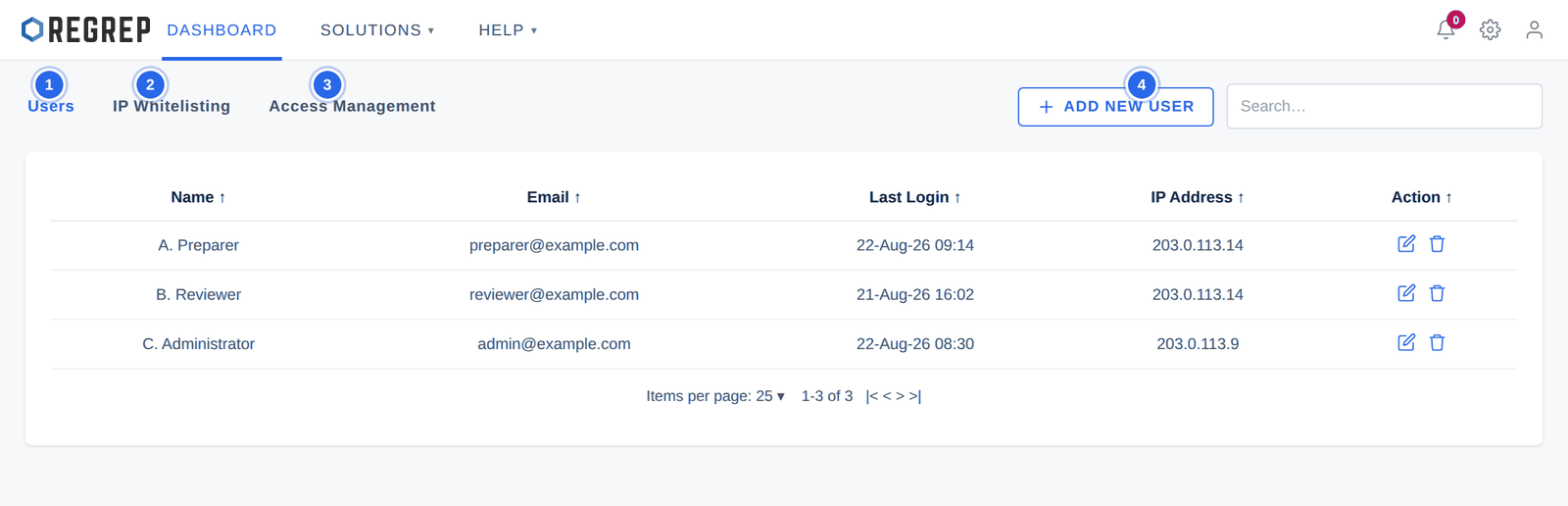
The list shows each user's name, email address, last sign-in and the IP address it came from. The last two columns are the useful ones for review: a user who has not signed in for months probably no longer needs an account, and an unexpected IP address is worth asking about.
Select ADD NEW USER.
Enter their name and corporate email address.
Save. The user receives a verification email and completes their own registration, including pairing their authenticator.
Move to Access Management and grant them the modules they need — see section 4.
Use the delete action on the user's row. Do this the day someone leaves, not at the next review.
The IP Whitelisting tab restricts which network addresses an account can sign in from. Each entry pairs an IP address with a user's email.
Select ADD NEW IP.
Enter the IP address and the email address it applies to.
Save.
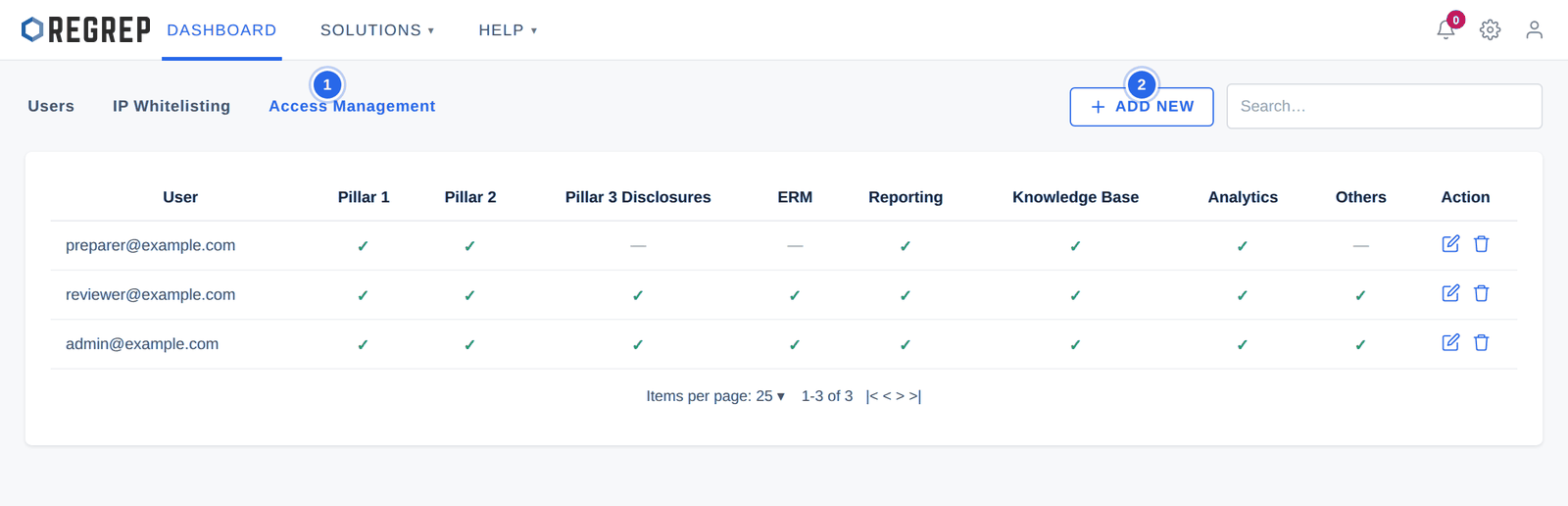
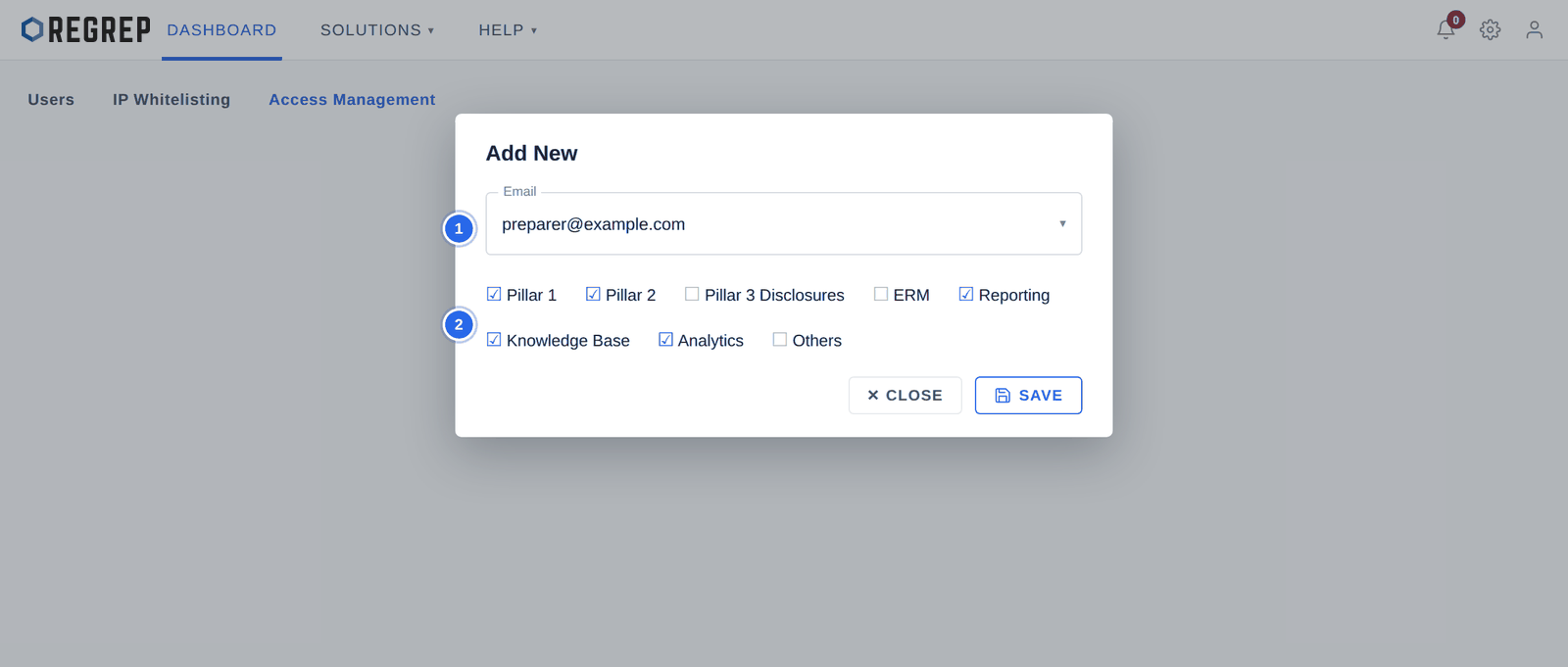
This is the permission model. Access is granted per user, per module — there are no predefined roles such as "preparer" or "reviewer" to assign.
| Area | What it covers |
|---|---|
| Pillar 1 | The Pillar 1 capital requirements module. |
| Pillar 2 | The Pillar 2 ICARA module. |
| Pillar 3 Disclosures | The Pillar 3 disclosures module. |
| ERM | Enterprise risk management functionality. |
| Reporting | Reporting and export functionality. |
| Knowledge Base | Reference material and documentation. |
| Analytics | The analytics and limit monitoring dashboards. |
| Others | Remaining modules, including the tax reporting engines, DORA and the XBRL converter. |
The grid is module-level, not action-level. Granting Pillar 1 grants the whole module — creating sessions, editing figures, deleting sessions and exporting submissions. There is no separate permission for the destructive actions, so a user who can prepare a return can also delete it.
The tax reporting engines, DORA and the XBRL converter do not have their own columns. They fall under Others, which means the error-bypass control in the XBRL converter is granted by the same tick that grants everything else in that group.
Within the constraints above, a workable arrangement for a small firm:
| Person | Grant | Why |
|---|---|---|
| Preparer | The modules they actually work in, and nothing else | Limits the blast radius of a mistake to the returns they are responsible for. |
| Reviewer | The same modules, plus Analytics and Reporting | Lets them check the work and the limit position without needing to prepare it. |
| Administrator | All areas | Needed to manage users; should be a named individual, not a shared login. |
| Everyone else | No grant | Nobody should have access because it was easier than deciding. |
Review the list quarterly, and immediately whenever someone changes role or leaves. For each user ask: do they still need every module they hold, and have they signed in recently? If the answer to either is no, change the grant.
The Dashboard shows a security summary for the signed-in account: last sign-in, the IP address it came from, MFA status and the count of failed sign-in attempts.
MFA Status should read as activated for every account. If it does not, raise it with REGREP support — the indicator and the actual enforcement should agree, and a security widget that under-reports is worse than none.
Failed Login Attempts rising without explanation is worth investigating. Ask the user before assuming an attack; a stale saved password is the usual cause.
IP Address that does not match where the user works deserves a question.
User Logs records what has been done in the platform. Reach it from See All beneath the Dashboard access log panel.
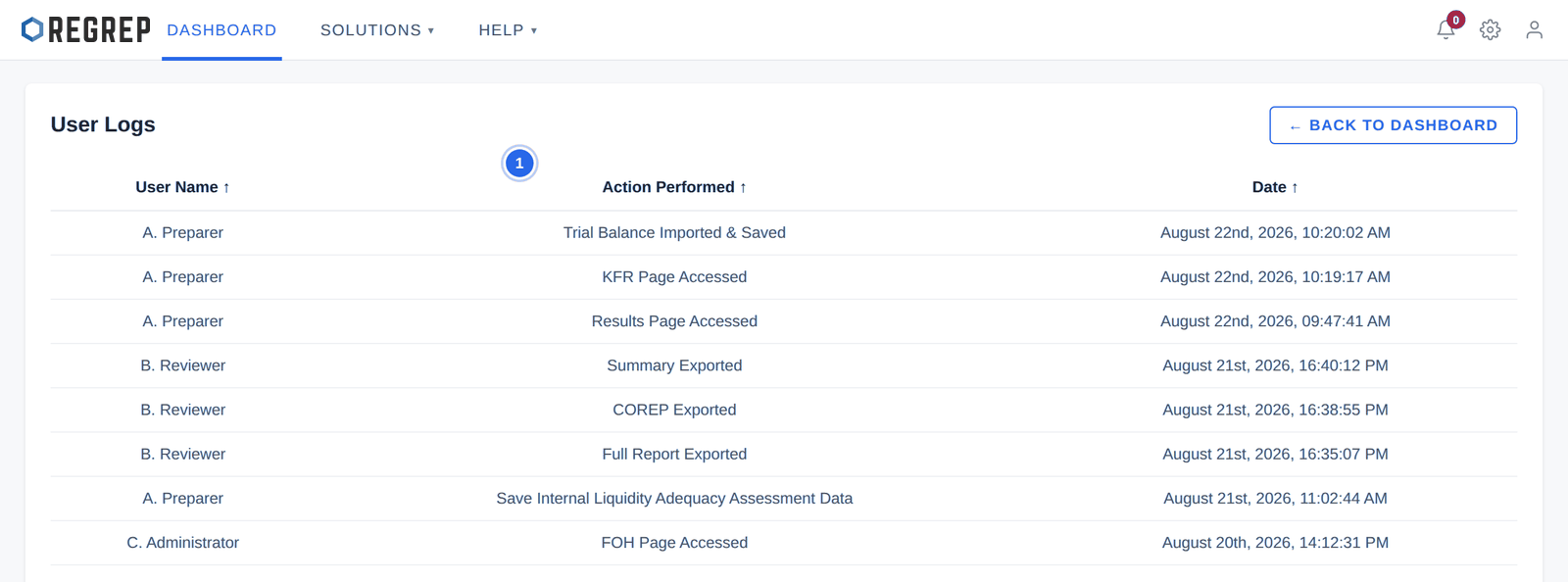
The log records page accesses, data imports, saved calculation data and exports by name — "Trial Balance Imported & Saved", "COREP Exported", "Full Report Exported". Because exports are logged, the log is your evidence of who generated a submission package and when.
Before a submission: confirm who prepared and who reviewed it.
After an unexpected change: find who last saved the session.
At quarterly review: check for users who are not using the access they hold, and for exports nobody can account for.
During an audit: evidence that the firm knows who did what.
| When | Do this |
|---|---|
| A new joiner | Create the user, confirm they have completed registration and paired an authenticator, then grant only the modules their role needs. |
| A role change | Amend the access grant the same day. Adding is easy to remember; removing is the part that gets forgotten. |
| A leaver | Delete the user account the day they leave. Their history remains in the access log. |
| Monthly | Review failed sign-in attempts and any unfamiliar IP addresses. |
| Quarterly | Full access review — every user, every grant. Check for dormant accounts. |
| Before each submission window | Confirm the people who need to prepare and review have the access to do so, and that nobody else does. |
Worth knowing, and worth raising with REGREP if they affect you:
No role templates — grants are assembled per user, so a new joiner cannot simply be given "the reviewer role".
No action-level permissions — module access includes deletion and export.
No maker–checker enforcement — the platform does not require a second person to approve a submission before it can be exported.
Sessions in most modules can be deleted permanently by any user with access to that module.
Backup or recovery codes are not issued at two-factor enrolment, so a lost device needs an administrator or support to resolve.
Document control
| Version | Date | Change |
|---|---|---|
| 1.0 | January 2026 | New guide. Documents Team Management (Users, IP Whitelisting, Access Management), the module-level permission model and its limitations, account security indicators, and the access log including its use as evidence of who generated a submission. |
REGREP is an independent software provider. This manual describes how to operate the platform and is not legal, tax or regulatory advice. Confirm scope, thresholds and submission dates with your competent authority before you file.
The rest of the documentation set.
Accounts, navigation, settings and sessions — the foundations every REGREP module depends on.
Read the guide →Calculating own funds, fixed overheads, K-Factors and concentration risk, and producing regulatory submissions.
Read the guide →Assessing the harms your firm can cause, and the capital and liquidity you hold against them.
Read the guide →Producing the public disclosure of your capital position from the Pillar 1 and Pillar 2 work already done.
Read the guide →