
Getting Started
Accounts, navigation, settings and sessions — the foundations every REGREP module depends on.
Read the guide →Calculating own funds, fixed overheads, K-Factors and concentration risk, and producing regulatory submissions.
Pillar 1 calculates the own funds requirement for an investment firm under the IFR/IFD regime. It takes your trial balance, trading book and K-Factor data, works out the three candidate requirements — permanent minimum capital, the fixed overhead requirement and the K-Factor requirement — and reports capital adequacy against the highest of them.
The module also produces the regulatory submission files: EBA and CySEC formats, COREP, and XBRL-CSV packages for framework versions 4.0 and 4.2.
You will also need the source data files for the reporting period:
| File | Contents | Format |
|---|---|---|
| Trial Balance | The general ledger for the reporting date, on and off balance sheet. | .xlsx |
| Trading Book | Trading portfolio positions and asset data. | .xlsx |
| KFR | K-Factor volume data where it is not derived from the trial balance. | .xlsx |
Solutions → Regulatory Reporting → Prudential Reporting Engine → Pillar 1 — Capital Requirements.
The session list opens first. Select the + button to create a new one.
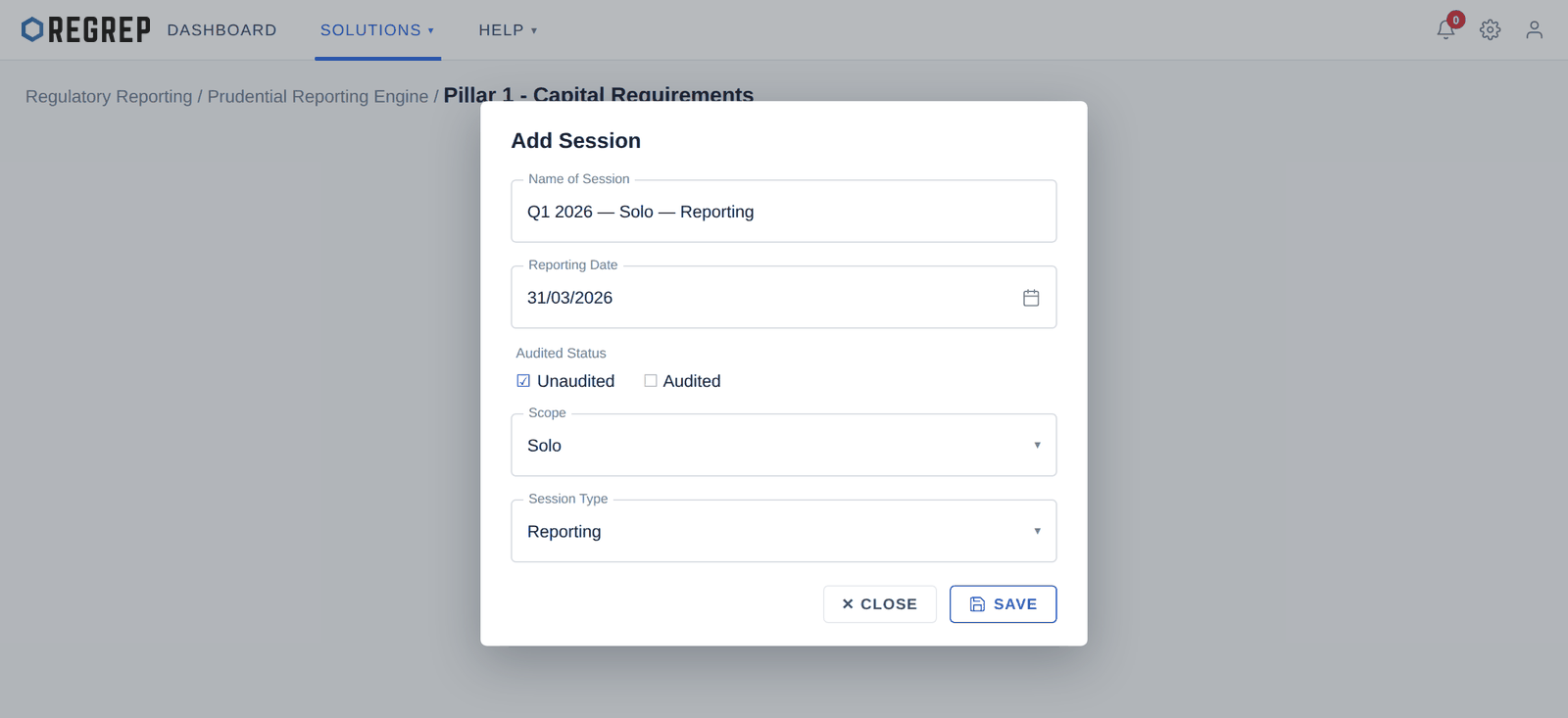
| Field | What to enter |
|---|---|
| Name of Session | A descriptive title. A convention such as "Q1 2026 — Solo — Reporting" makes the list readable once you have a year's worth of sessions. |
| Reporting Date | The date the figures are struck at. This drives which data is expected and appears on every export. |
| Audited Status | Whether the underlying financial figures have been audited. Audited and unaudited sessions for the same date are normal — the first for monitoring, the second once the audit completes. |
| Scope | Solo or Consolidated. Only the scopes ticked in Settings are offered. |
| Session Type | Monitoring for internal use, or Reporting for a session intended to produce a regulatory submission. |
Select SAVE. REGREP creates the session and opens it.
Every page of a session is reached from the sidebar on the left, which also shows the session's parameters so you can confirm which cycle you are in.
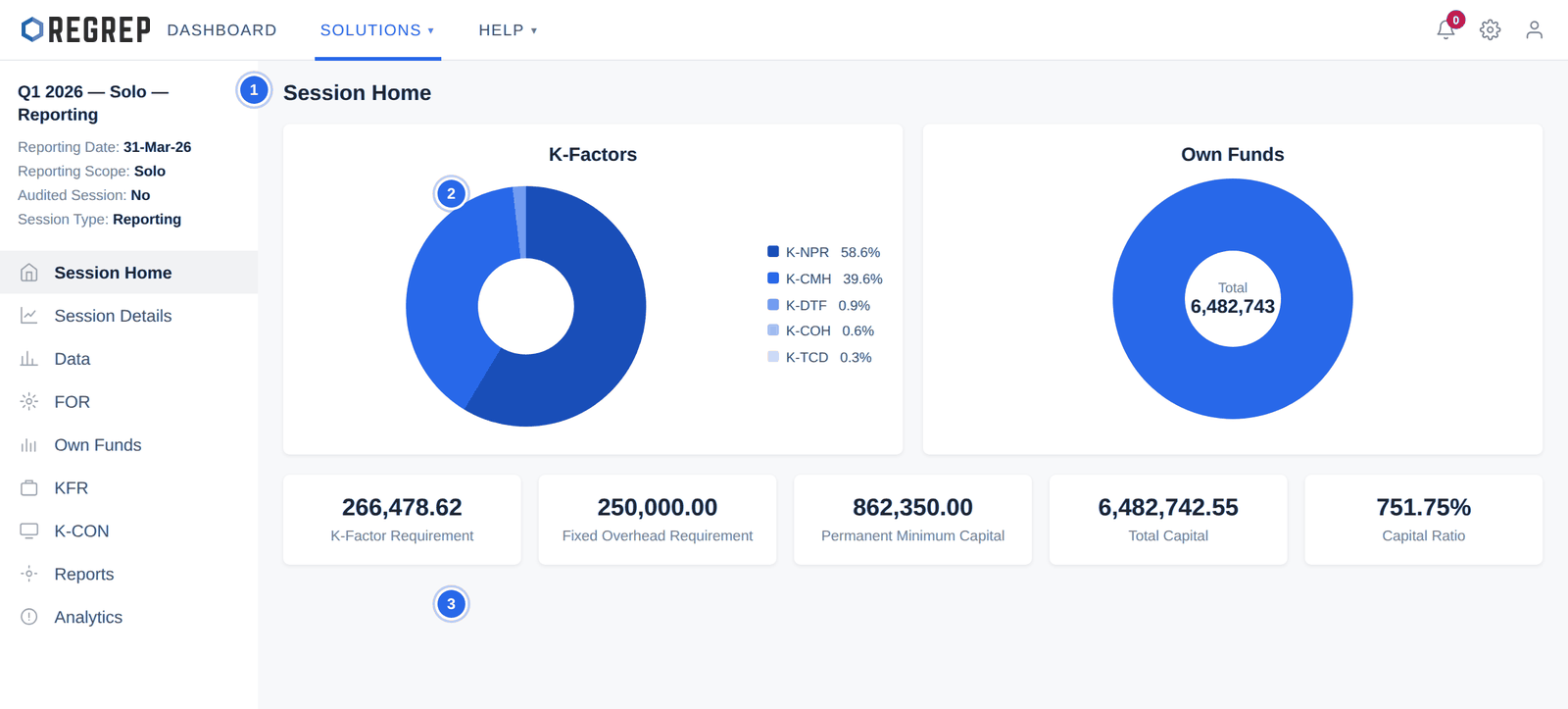
| Page | Purpose |
|---|---|
| Session Home | Headline capital position and ratios. |
| Session Details | A read-only view of the parameters and Settings values this session inherited. Use it to confirm what the calculations are based on. |
| Data | Import source files, review the trial balance and trading book, and configure counterparties. |
| FOR | The Fixed Overhead Requirement calculation, step by step. |
| Own Funds | Capital composition — CET1, Additional Tier 1, Tier 2. |
| KFR | K-Factor requirements, in summary and by individual factor. |
| K-CON | Concentration risk on trading book exposures exceeding regulatory limits. |
| Reports | The consolidated regulatory view, and all export formats. |
| Analytics | Limit monitoring and capital utilisation for internal risk management. |
Open Data. The page has three tabs: Import Files, Trial Balance and Trading Book.
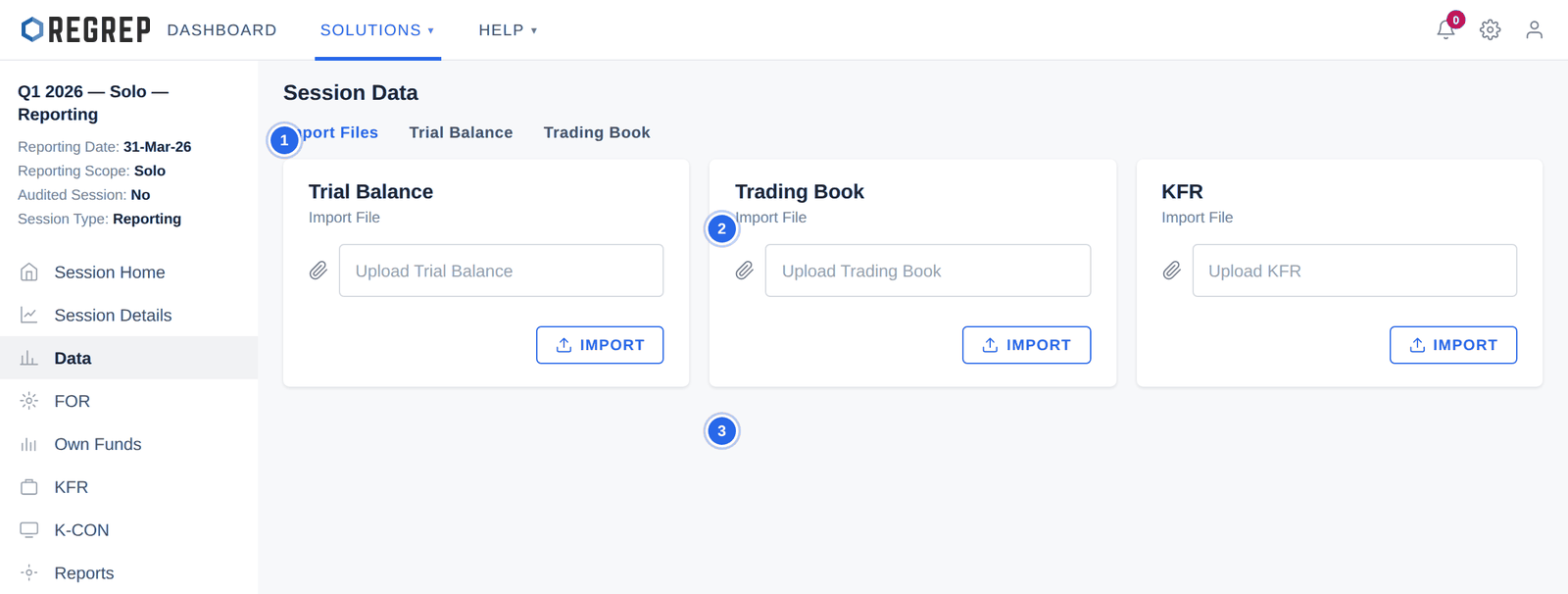
Attach the file to the matching card — trial balance to Trial Balance, and so on.
Select IMPORT on that card.
Wait for the import to confirm before moving to the next card.
Move to the Trial Balance and Trading Book tabs to review what was loaded.
The Trial Balance tab has three sub-tabs — ON Balance Sheet, OFF Balance Sheet and Counterparty — and shows a balance check beside the tab row.
An imported trial balance brings counterparty names but none of the regulatory classification the calculation needs. Open Data → Trial Balance → Counterparty to supply it.
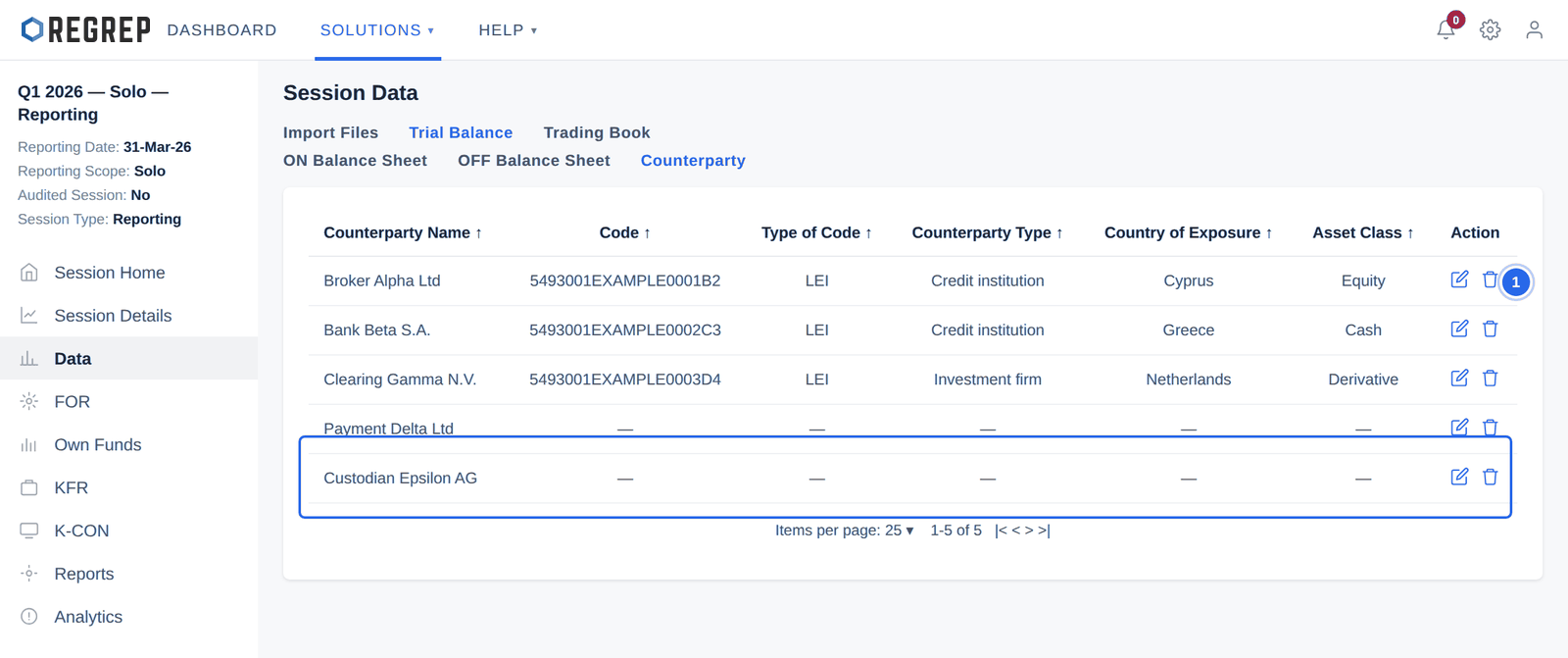
Select the edit icon on a row to open the classification dialog.
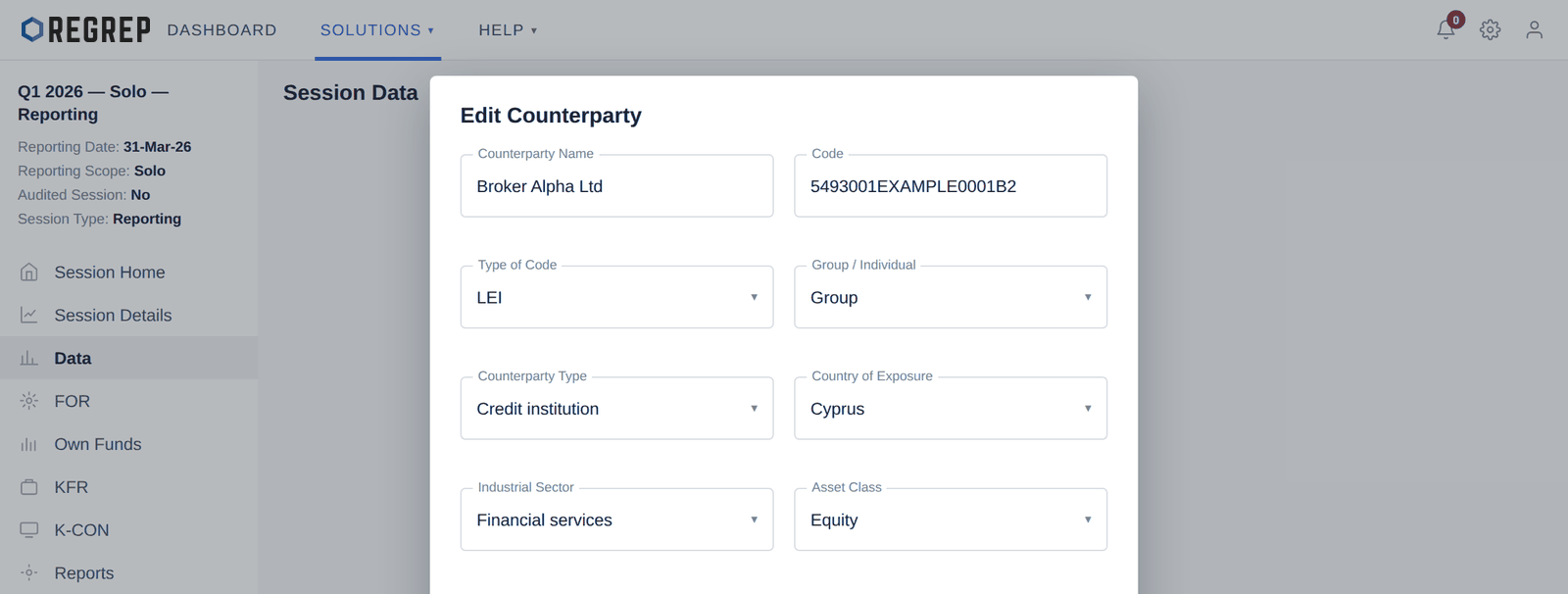
| Field | What to enter |
|---|---|
| Counterparty Name | Carried from the import. Correct it here if the ledger name is not the legal name. |
| Code and Type of Code | The identifier and what kind it is — an LEI where one exists. |
| Group / Individual | Whether the counterparty is part of a corporate group or stands alone. This determines how exposures are aggregated for concentration purposes. |
| Counterparty Type | The regulatory category — credit institution, investment firm, corporate, and so on. |
| Country of Exposure | The jurisdiction the exposure sits in. |
| Industrial Sector | Sector classification, used in concentration analysis. |
| Asset Class | The asset class of the exposure. |
Select UPDATE. The classification flows straight into the concentration tables in Reports and into K-CON. Repeat for every counterparty carrying an exposure.
The FOR page shows how the requirement was derived, line by line, from the prior-year figures held in Settings.
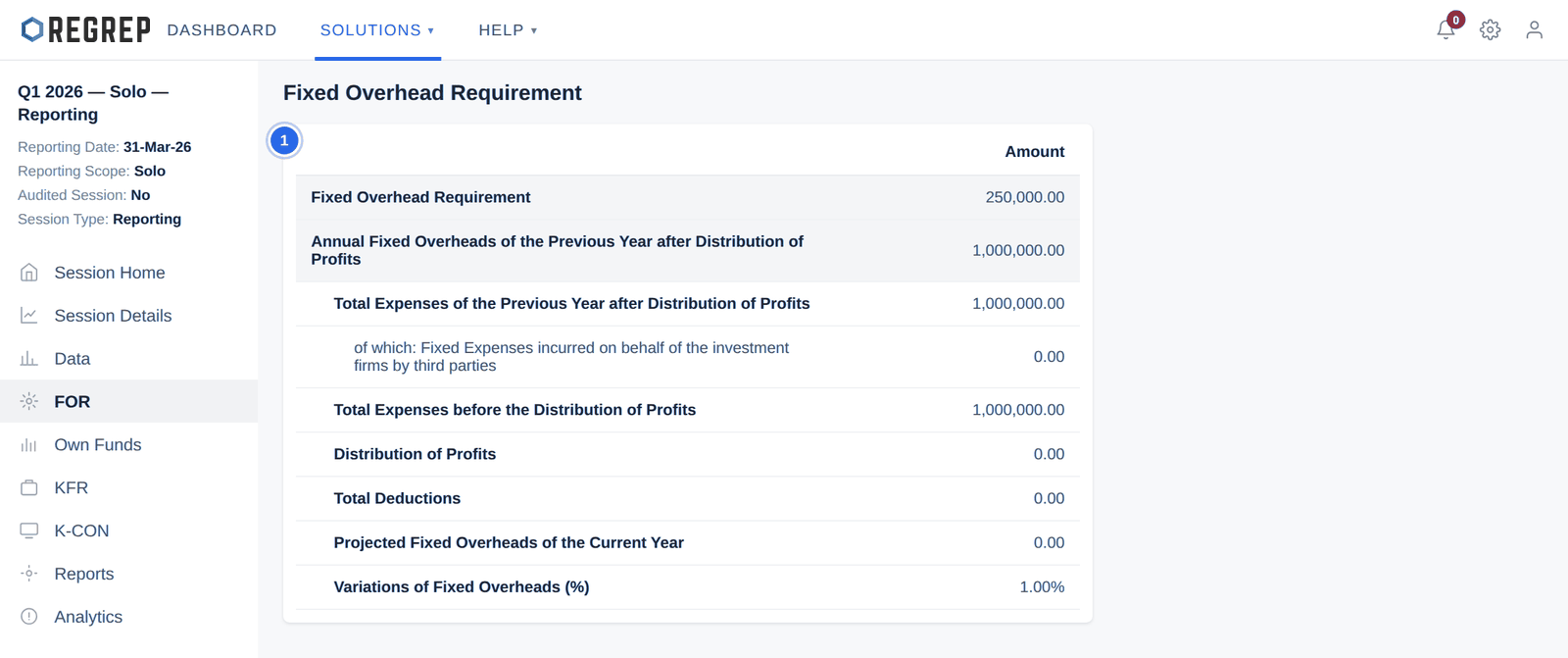
Reading down the page: total prior-year expenses, less the permitted deductions, gives the annual fixed overheads. One quarter of that figure is the Fixed Overhead Requirement. Projected overheads for the current year and the percentage variation are shown beneath, so a material change in the firm's cost base is visible.
To change any input, go back to Settings, amend the Fixed Overheads section, save, and create a new session. Values already inherited by an existing session do not change retrospectively.
The Own Funds page shows the firm's capital composition.
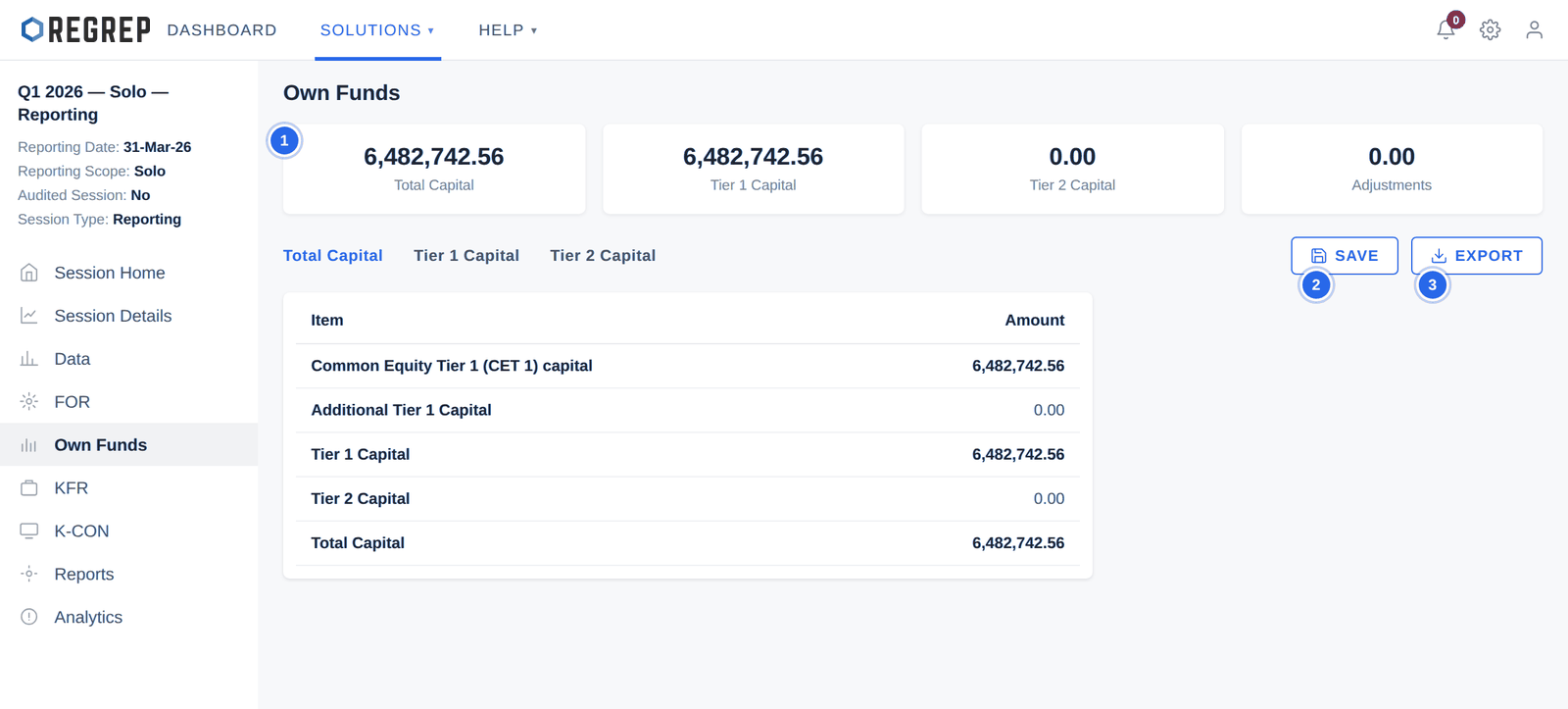
The table below the cards itemises Common Equity Tier 1, Additional Tier 1, Tier 2 and the total. The Tier 1 and Tier 2 fields are editable where your capital structure requires an adjustment the engine cannot derive from the ledger.
The KFR page reports the K-Factor requirement in summary and factor by factor. The sub-tabs across the top move between the summary and the individual factors: AUM, CMH, ASA, COH, NPR, CMG, TCD and DTF.
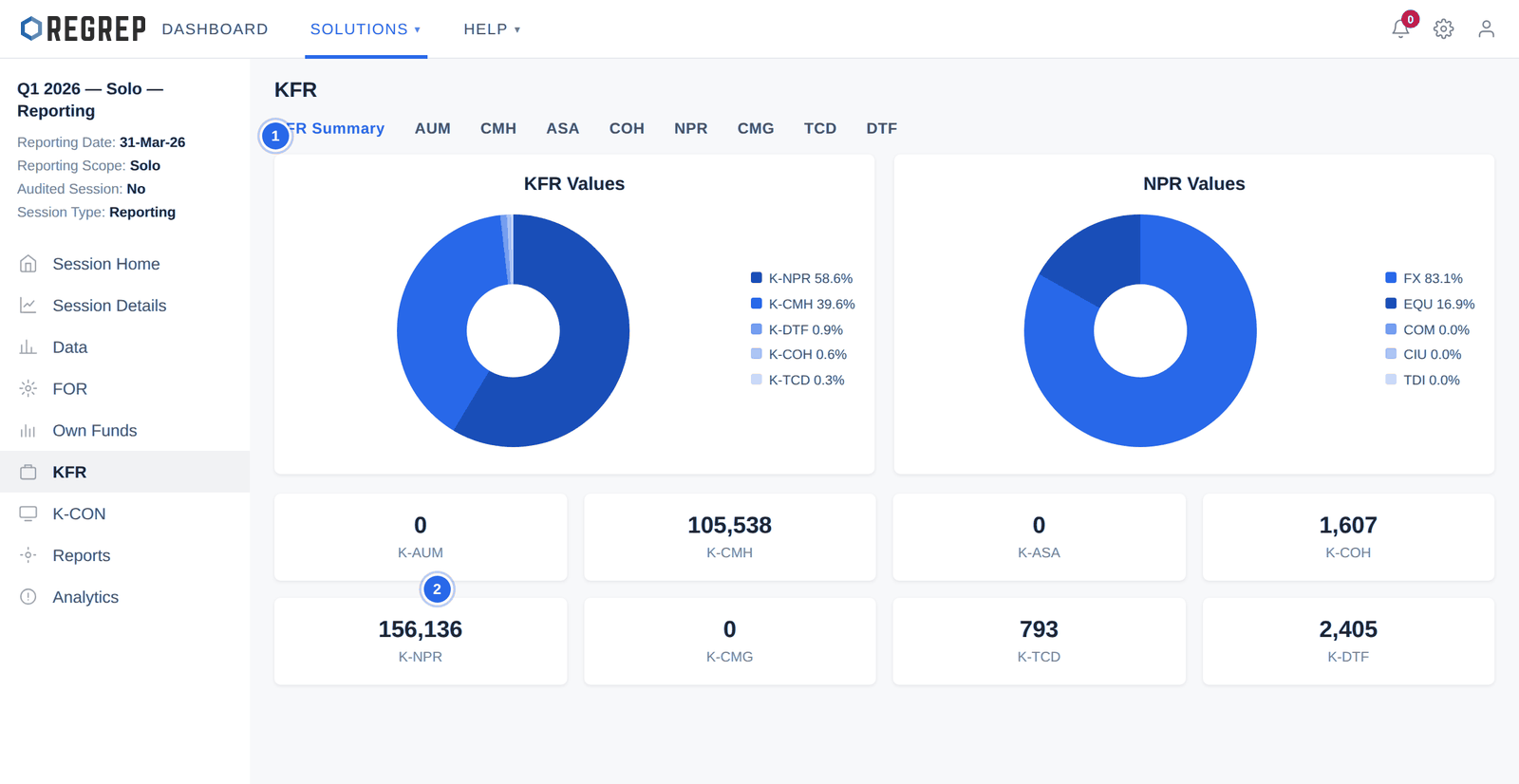
The two charts show where the requirement comes from. KFR Values breaks down the total by factor; NPR Values breaks the net position risk component down further by risk type — foreign exchange, equity, commodity, collective investment undertakings and traded debt instruments.
Open an individual factor tab to see the underlying exposures and the coefficient applied.
K-CON is the own funds requirement arising from trading book exposures that exceed the limits set in Article 37(1) of the IFR.
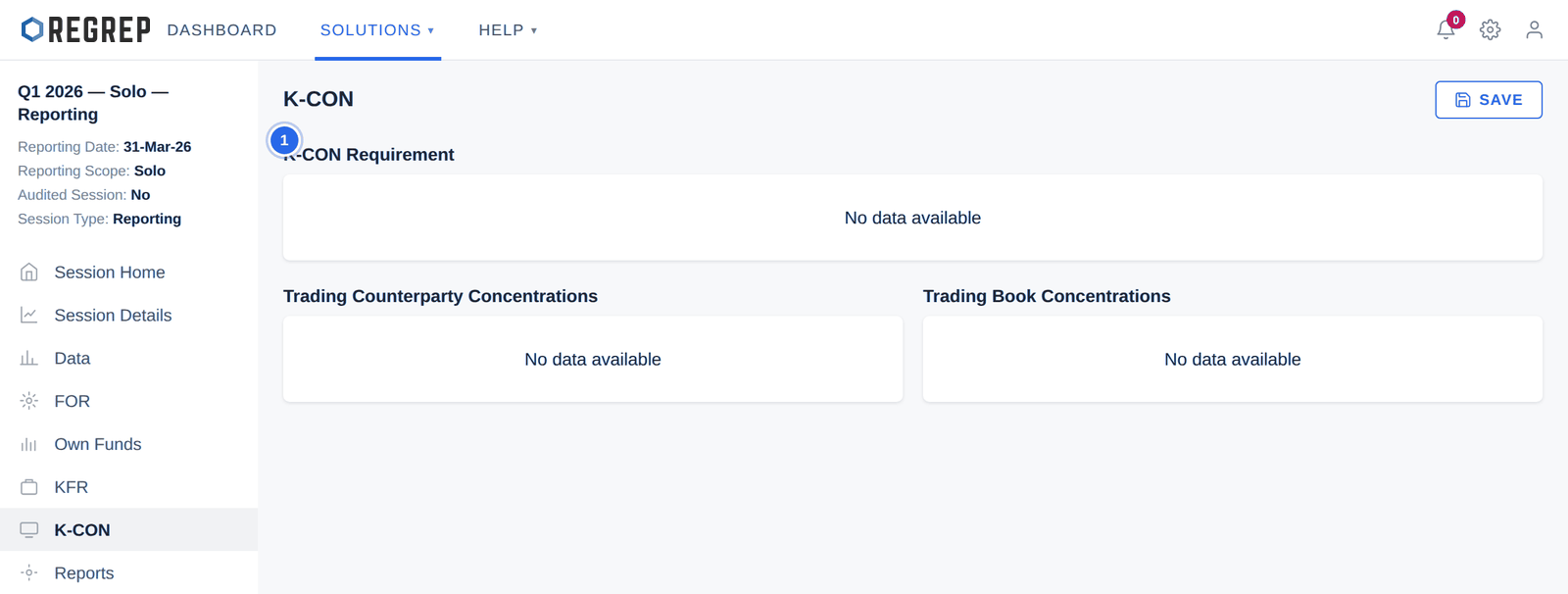
Where limits are exceeded, three sections populate:
K-CON Requirement — the breaching counterparties, with exposure value, exposure as a percentage of own funds, own funds requirement, excess and the resulting K-CON charge.
Trading Counterparty Concentrations — final exposure and concentration percentage per trading counterparty.
Trading Book Concentrations — sector and asset-class concentrations across the trading book.
Reports brings the whole session together. The sub-tabs are Summary, K-Factor Details, Concentration Risk, Liquidity and Threshold Review.
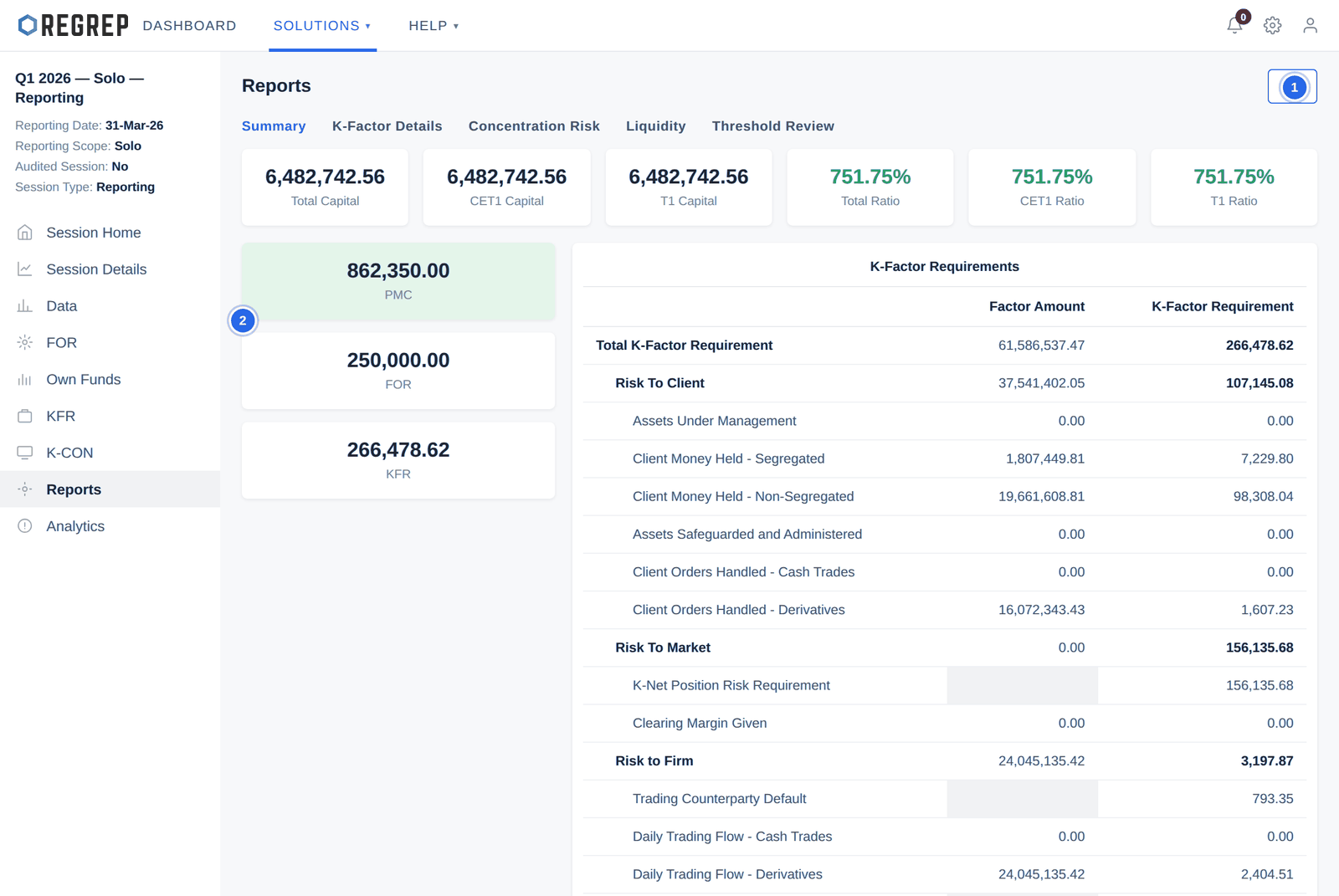
The grids to the right set out the K-Factor requirements grouped by Risk to Client, Risk to Market and Risk to Firm, each with the factor amount and the resulting capital charge, followed by the liquidity requirement and total liquid assets.
Select the ⋯ button in the top-right corner of the Reports page.
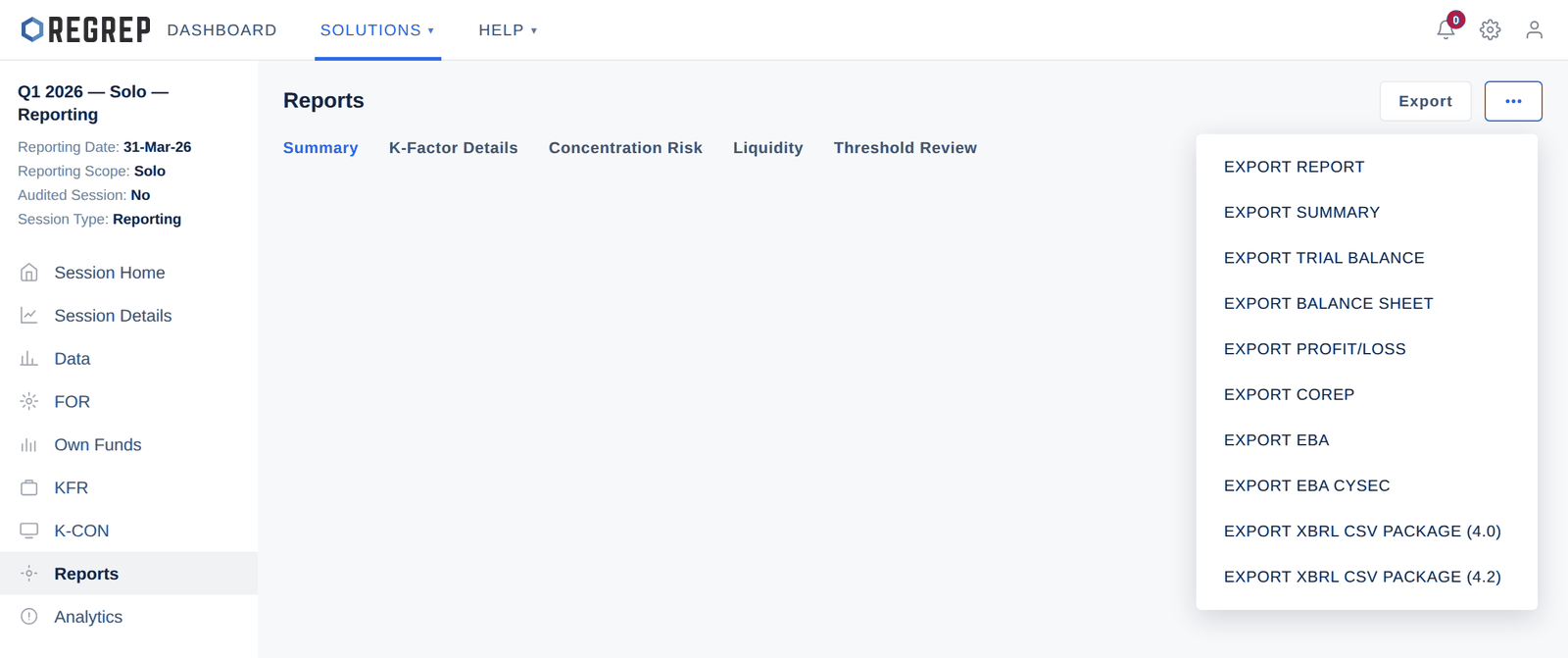
| Export | Use it for |
|---|---|
| Export Report | The full report for internal review and audit files. |
| Export Summary | The headline capital position on its own. |
| Export Trial Balance | The trial balance as the engine read it — useful for reconciling back to the ledger. |
| Export Balance Sheet | The balance sheet view derived from the trial balance. |
| Export Profit/Loss | The profit and loss view derived from the trial balance. |
| Export COREP | The Common Reporting framework return. |
| Export EBA | The standard EBA submission format. |
| Export EBA CySEC | The EBA format with the variations CySEC requires. |
| Export XBRL CSV Package (4.0) | XBRL-CSV against EBA framework version 4.0. |
| Export XBRL CSV Package (4.2) | XBRL-CSV against EBA framework version 4.2. |
Analytics is for internal risk management rather than regulatory submission. It answers the question a compliance officer asks first: is anything close to a limit?
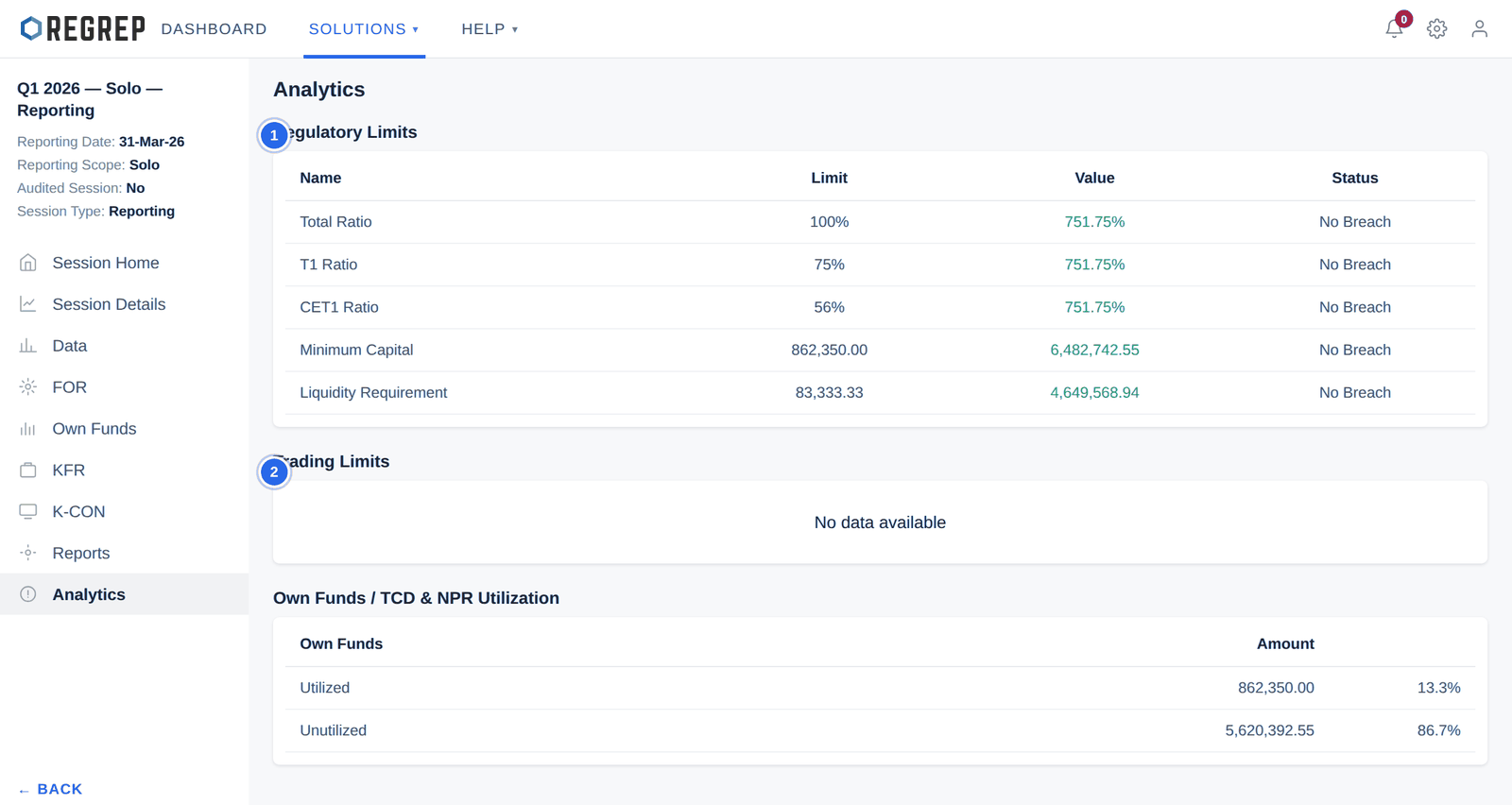
Further down the page: uncovered position value by asset class, own funds utilisation split between utilised and unutilised capital with a breakdown by risk category, and the top five market risk and trading counterparty concentrations.
The order below is the one that avoids rework.
Check Settings → Prudential Reporting Variables is current, and save it.
Create the session with the correct reporting date, scope, audited status and type.
Data → Import Files: import the trial balance, trading book and KFR files.
Data → Trial Balance: confirm the balance check reads zero.
Data → Trial Balance → Counterparty: classify every counterparty carrying an exposure.
FOR: confirm the fixed overhead requirement matches your expectation.
Own Funds: review the capital composition and adjust only where necessary.
KFR: review the factor requirements and drill into anything that looks wrong.
K-CON: enter excess duration where an exposure has breached a limit, and save.
Reports → Summary: check the binding requirement and the ratios.
Analytics: confirm no limit is breached.
Export the formats your regulator requires, and file the report alongside the export in your own records.
| Symptom | Likely cause and fix |
|---|---|
| Session Home is blank after creating a session | No data has been imported yet. Go to Data → Import Files. |
| The balance check shows a non-zero figure in red | The imported trial balance does not balance. Correct the source file and re-import — do not proceed on an unbalanced ledger. |
| Concentration tables show placeholder identifiers instead of counterparty names | Counterparties have not been classified. Complete Data → Trial Balance → Counterparty. |
| K-CON shows "No data available" | Normal — no exposure breaches the Article 37(1) limits. If you expect a breach, check that counterparties are classified and the trading book imported. |
| The fixed overhead requirement is not what you expect | The session inherited the Settings values in force when it was created. Amend Settings, save, and create a new session. |
| A K-Factor shows zero when you expect a value | Either the underlying volume data was not in the imported files, or the relevant threshold in Settings is unset. Check Settings → Threshold Requirements. |
| An export is rejected by the regulator | Check the framework version, the reporting scope and whether the corporate profile in Settings carries a valid LEI. |
| Version | Date | Change |
|---|---|---|
| 2.0 | January 2026 | Rewritten to start at the module. The navigation and Settings chapters move to the Getting Started guide. Export list corrected from six entries to the ten the platform offers, adding Trial Balance, Balance Sheet, Profit/Loss and COREP. Archiving clarified against the Archived Sessions tab. Terminology standardised on FOR, with a note where the interface shows FOH. Adds the trial balance check, the binding-requirement highlight, a full reporting cycle and troubleshooting. Screenshots refreshed using fictional firm data. |
| 1.0 | — | Original Pillar 1 manual. |
REGREP is an independent software provider. This manual describes how to operate the platform and is not legal, tax or regulatory advice. Confirm scope, thresholds and submission dates with your competent authority before you file.
The rest of the documentation set.
Accounts, navigation, settings and sessions — the foundations every REGREP module depends on.
Read the guide →Assessing the harms your firm can cause, and the capital and liquidity you hold against them.
Read the guide →Producing the public disclosure of your capital position from the Pillar 1 and Pillar 2 work already done.
Read the guide →Preparing, validating and submitting financial account information under the EU automatic exchange framework.
Read the guide →