
Pillar 1 — Capital Requirements
Calculating own funds, fixed overheads, K-Factors and concentration risk, and producing regulatory submissions.
Read the guide →Accounts, navigation, settings and sessions — the foundations every REGREP module depends on.
REGREP is a regulatory reporting platform for investment firms. It brings prudential reporting, tax transparency reporting, operational resilience reporting and regulatory file conversion into a single workspace, with a shared corporate profile and a common way of working.
This guide covers everything that is the same across the platform: how to get an account, how the interface is organised, how to configure the settings that every calculation depends on, and how reporting sessions work. Read it once before you open a module guide for the first time.
Each reporting engine has its own guide. All of them assume you have read this one.
| # | Guide | Covers |
|---|---|---|
| 1 | Getting Started | Accounts, sign-in, navigation, Settings, sessions, glossary — this document |
| 2 | Pillar 1 — Capital Requirements | Own funds, fixed overheads, K-Factors, concentration risk, reports and exports |
| 3 | DAC2 | EU automatic exchange of financial account information |
| 4 | Pillar 2 — ICARA | Internal capital and risk assessment, operational and market risk, liquidity adequacy |
| 5 | Pillar 3 — Disclosures | Public disclosure templates CC1, CC2 and CCA |
| 6 | CRS | Common Reporting Standard for non-DAC2 jurisdictions |
| 7 | TIN Validation | Single and batch taxpayer identification number checks |
| 8 | DORA — Register of Information | ICT third-party contractual arrangements and the relational template structure |
| 9 | Administration | Users, access rights, IP whitelisting and the audit trail |
| 10 | EBA XBRL Converter | Excel to XBRL-CSV conversion, validation and the error-bypass control |
Bold text names something you click or type into — a button, a tab, a field.
Menu paths are written with arrows: Solutions → Regulatory Reporting → Prudential Reporting Engine → Pillar 1.
Screenshots use a fictional firm, "Sample Investment Firm Ltd", with invented identifiers and figures. Your own screens will show your firm's data.
Numbered markers on a screenshot are explained in the key immediately below it.
Access to REGREP is granted per person, not per firm. Every user has their own credentials and their own second factor. Accounts are never shared.
Open the REGREP sign-in page and choose Sign Up / Register.
Complete the registration form.
Select SIGN UP.
The registration form asks for:
| Field | What to enter |
|---|---|
| Full Name | Your first and last name as they appear on your firm's records. |
| Legal Entity Name | The registered name of your firm. This is used to link your account to the right tenant. |
| Work Email | Your corporate email address. Personal email addresses are not accepted. |
| Password / Confirm Password | A password meeting the rules below. |
Password rules: at least 8 characters, including at least one capital letter, one number and one special character.
Open the verification email sent to the address you registered. Check your junk folder if it has not arrived within a few minutes.
Select the confirmation link inside it.
The link takes you straight to two-factor authentication setup.
REGREP requires a time-based one-time password (TOTP) from an authenticator app. Any standard authenticator works — Google Authenticator, Microsoft Authenticator, Authy, 1Password and others.
Open your authenticator app on your phone and choose to add a new account.
Scan the QR code shown on screen. Your app pairs with your REGREP account and starts generating a six-digit code that changes every 30 seconds.
Enter the current code to confirm the pairing.
Enter your email address and password, then select Login.
Open your authenticator app, enter the current six-digit code, and select Verify.
You are taken to the Dashboard. The code is required at every sign-in.
| Problem | What to do |
|---|---|
| The code is rejected | Codes expire every 30 seconds. Wait for the next code and try again. If codes are consistently rejected, check that the clock on your phone is set to update automatically — TOTP depends on accurate time. |
| You have forgotten your password | Select Forgot Password? on the sign-in page, enter your registered email address, and follow the reset link sent to you. |
| You have lost the paired device | Contact your firm's REGREP administrator, or REGREP support. Your identity will be verified before the second factor is reset. There is no self-service route. |
| Your account appears locked | Repeated failed sign-ins are recorded and shown on the Dashboard under Account Security. Contact your administrator. |
The bar across the top of every screen is the platform's permanent navigation. It has three menus on the left and three utilities on the right.
| Item | What it does |
|---|---|
| Dashboard | Returns you to the landing page: company overview, account security status, system events, the compliance calendar and recent user access logs. |
| Solutions | Opens the reporting engines and conversion tools. This is where the actual work lives. |
| Help | Documentation, and a route to contact support. |
| Notifications (bell) | System alerts, task statuses and administrative updates. The badge shows the unread count. |
| Settings (gear) | The corporate, prudential and tax parameters described in section 4. Not the same as your personal account settings. |
| Profile (person) | Your own account settings, security details and sign-out. |
Modules sit three levels deep under Solutions. The pattern is always the same: choose a reporting domain, then an engine, then the module.
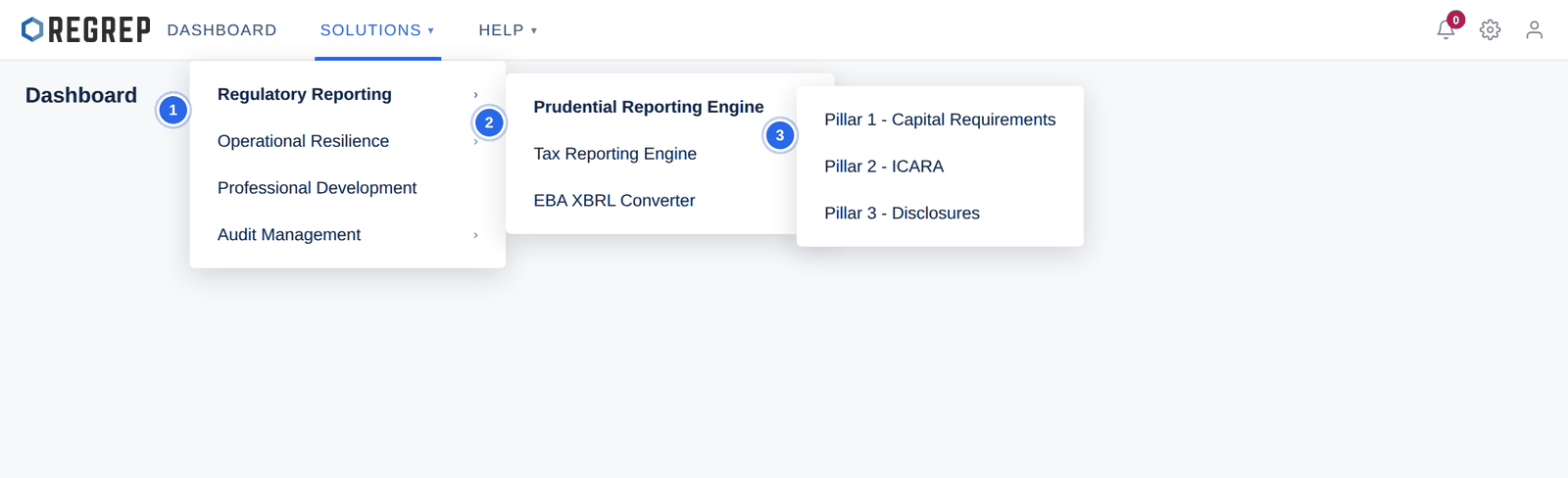
So the full path to Pillar 1 is Solutions → Regulatory Reporting → Prudential Reporting Engine → Pillar 1 — Capital Requirements. Module guides state the path once at the start and then assume you are inside.
REGREP shows the full catalogue of modules to everyone, and greys out the ones your firm is not licensed for. A greyed entry is not a fault — it means the module is available in the platform but not enabled for your tenant.
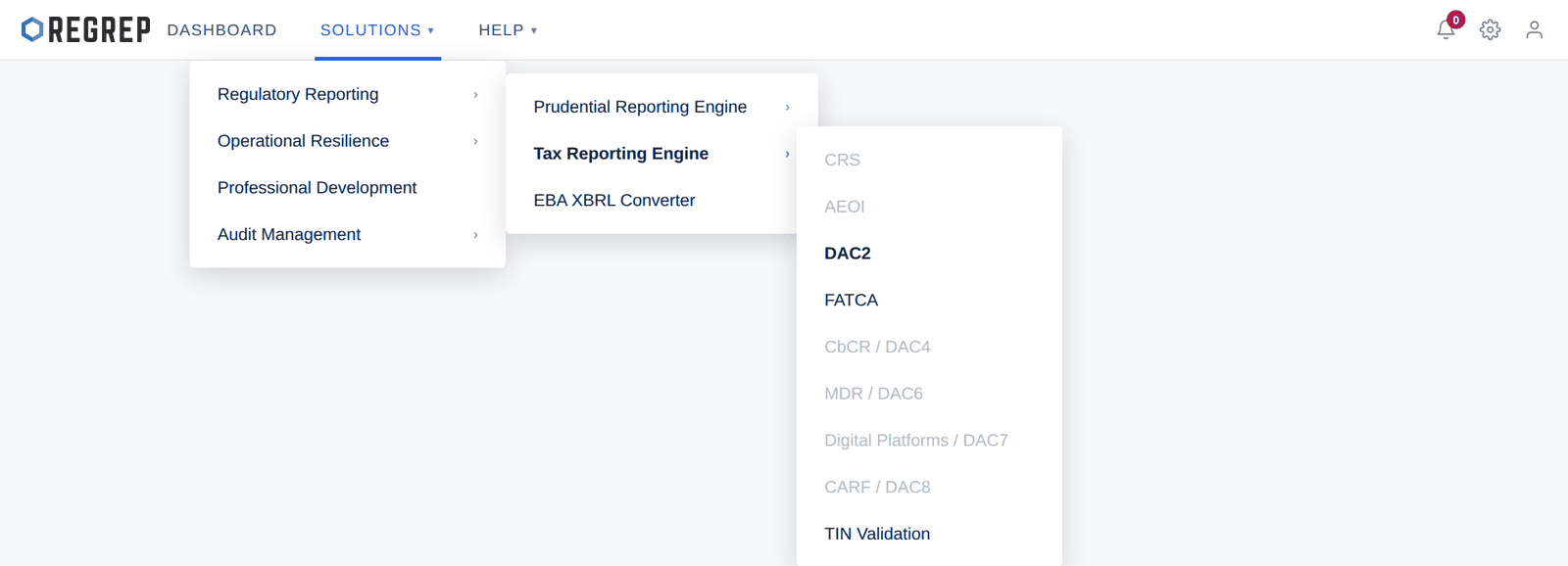
In the example above, DAC2, FATCA and TIN Validation are available; CRS, AEOI, CbCR / DAC4, MDR / DAC6, Digital Platforms / DAC7 and CARF / DAC8 are not. If you need a module that is greyed out, contact your REGREP account manager.
CbCR / DAC4, MDR / DAC6, Digital Platforms / DAC7 and CESOP are delivered as custom solutions rather than self-serve modules. They are scoped and configured per firm, so they do not appear as enabled entries in the menu even where your firm is in scope. Speak to your REGREP account manager if you report under any of them.
The Professional Development entry in the Solutions menu is delivered by EUCPD, a REGREP group company. Course content, certification and CPD records are EUCPD’s; access is provisioned through your REGREP account, and questions about course content go to EUCPD rather than the REGREP service desk.
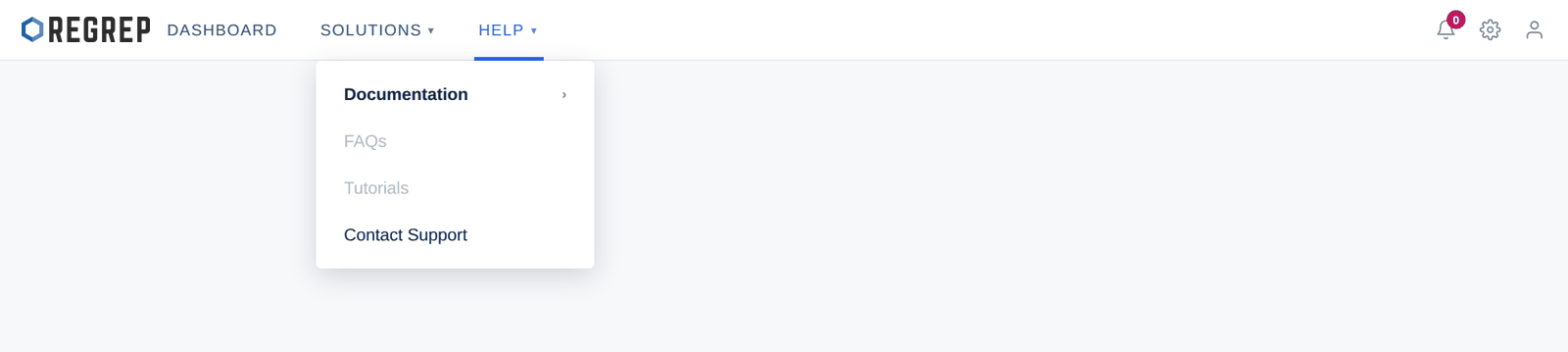
Documentation — this guide and the module guides.
Contact Support — raise a question with the REGREP team.
FAQs and Tutorials are shown greyed out because they are not yet published.
Inside a module, a breadcrumb sits above the page title showing the full path — for example "Regulatory Reporting / Prudential Reporting Engine / Pillar 1 - Capital Requirements". Inside a session, the left sidebar shows the session name and its key parameters, so you can confirm at a glance which reporting date and scope you are working on before you change anything.
Open Settings from the gear icon in the top-right of any screen. It is organised into three tabs.
The identity and governance profile of the firm. These values populate DAC2, CRS and DORA exports, so accuracy matters beyond the screen itself.
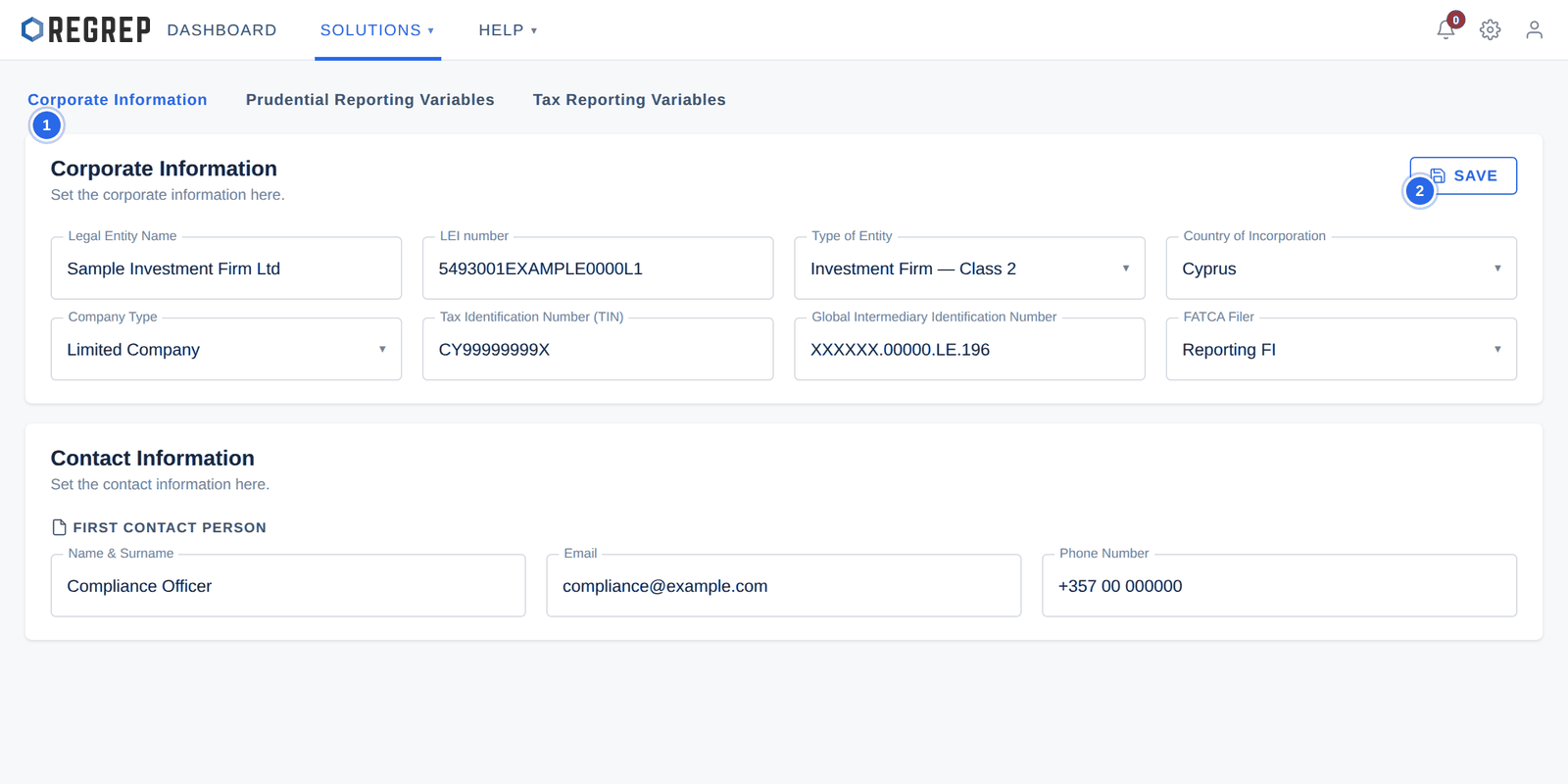
The tab has three sections:
| Section | Contents |
|---|---|
| Corporate Details | Legal entity name, LEI, type of entity, country of incorporation, company type, TIN, GIIN and FATCA filer status. |
| Contact Information | Primary and secondary compliance contacts used for regulatory correspondence. |
| Address Details | The registered and mailing addresses of the legal entity. |
The quantitative baselines the prudential calculation engine works from. Pillar 1, Pillar 2 and Pillar 3 all read this tab.
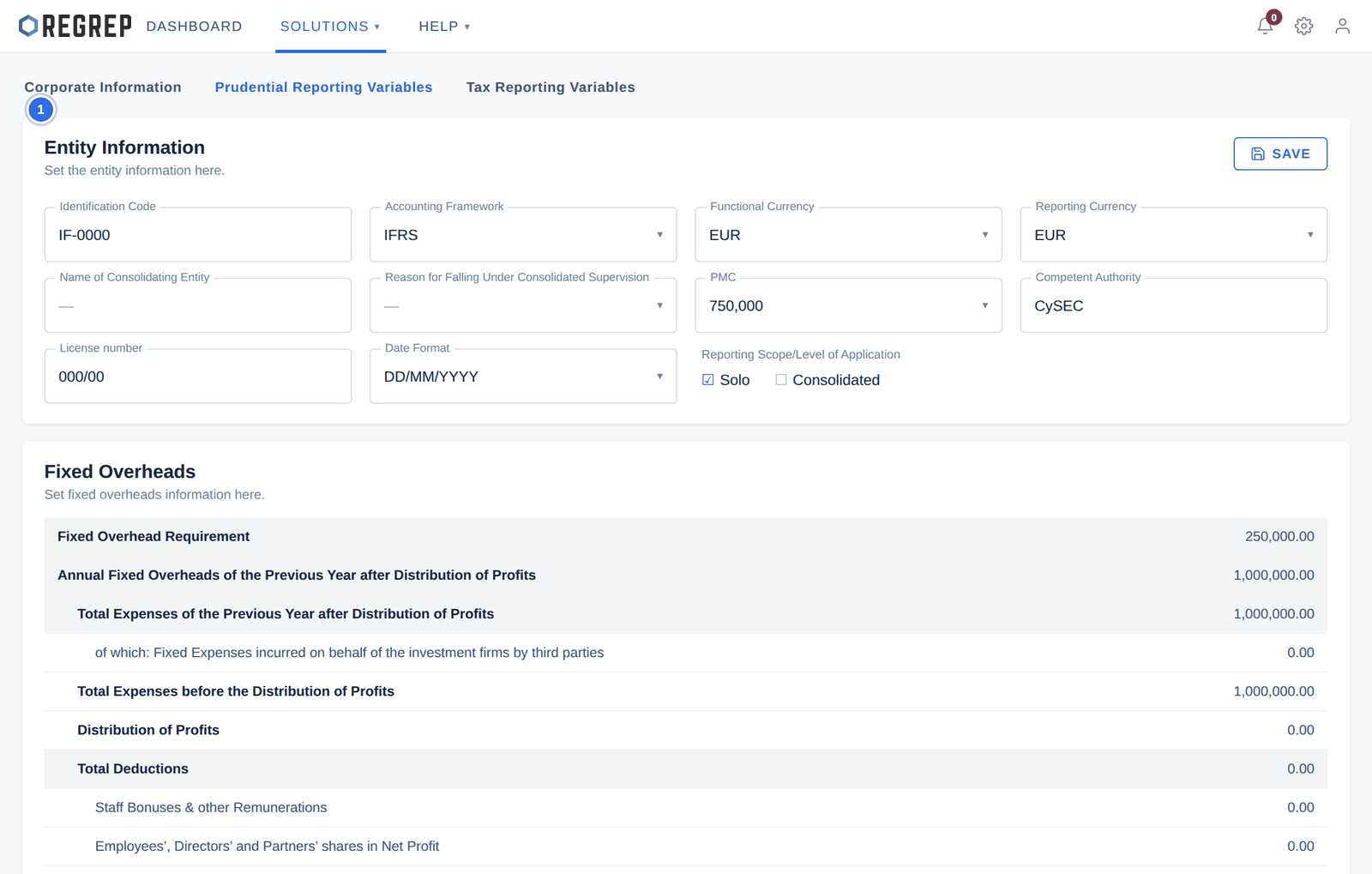
The tab is divided into five sections:
| Section | What it sets |
|---|---|
| Entity Information | Identification code, accounting framework, functional and reporting currency, consolidating entity, permanent minimum capital (PMC), competent authority, licence number, date format and reporting scope (Solo, Consolidated, or both). |
| Fixed Overheads | Prior-year expense figures from which the Fixed Overhead Requirement (FOR) is derived. Shaded rows are calculated by the platform; white rows are yours to complete. |
| Threshold Requirements | Operational volume baselines across business activities — assets under management, client money held, client orders handled, daily trading flow, net position risk, on- and off-balance-sheet totals, and the annual gross revenue breakdown. |
| Trading Limits | Internal exposure limits of your own choosing, monitored on the Pillar 1 Analytics page. |
| Adjustments | Supervisory overlays including Individual Capital Guidance (ICG) and Pillar 2 adjustments. |
Jurisdiction-specific parameters for the tax reporting engines. The main control is Upload Country List, which accepts an .xlsx file defining the active tax jurisdictions and any custom country matrix your firm needs for cross-border reporting.
| Module | Required before you start |
|---|---|
| Pillar 1, 2 and 3 | Corporate Information (entity name, LEI) and the whole Prudential Reporting Variables tab. |
| DAC2, CRS, FATCA | Corporate Information in full — legal entity name, LEI, type of entity, country of incorporation, company type, TIN, GIIN and FATCA filer. |
| DORA ROI | Corporate Information — the entity metadata panel is populated from it. |
| TIN Validation | None. The module works standalone. |
| EBA XBRL Converter | Corporate Information and the reporting currency from Prudential Reporting Variables. |
Most REGREP modules organise work into sessions. A session is one reporting cycle: a set of source data, the parameters that applied when it was created, everything the engine calculated from them, and the outputs generated. Sessions are independent of each other, so last quarter's figures are never disturbed by this quarter's work.
Opening a module lands you on its session list. If your firm has not created any sessions yet, the list is empty.
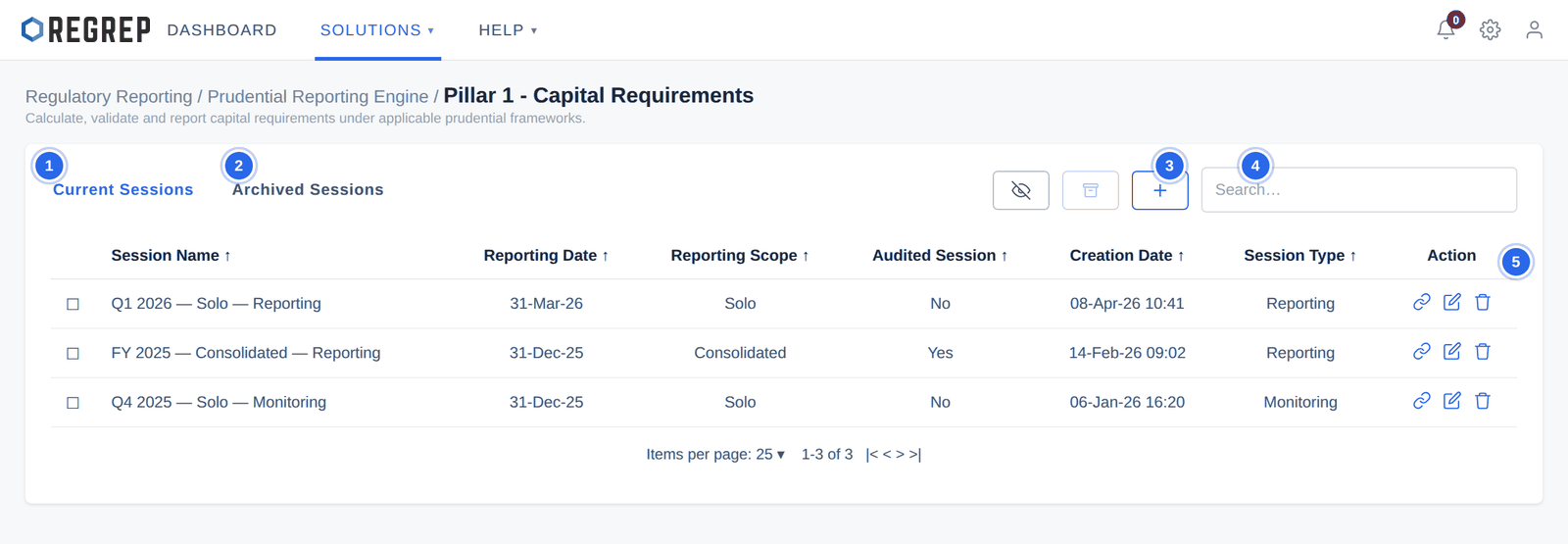
Select the + button above the list. A dialog asks for the session parameters, which differ by module — the module guide sets them out. In every case, choosing the reporting date and scope correctly at this point matters, because the session inherits the Settings values that apply to them.
Once saved, you are taken into the session and the module's own workspace opens.
Each row in the session list offers up to three actions, and the toolbar above offers archiving.
| Action | Effect | Reversible? |
|---|---|---|
| Open | Enters the session workspace. | n/a |
| Rename | Changes the session's label only. No data or calculation is affected. | Yes |
| Archive | Moves the session out of Current Sessions and into the Archived Sessions tab, where it stays readable. | No — a session cannot be returned to the active list |
| Delete | Removes the session and its data from the system. | No |
Warning — this cannot be undone
Deleting a session removes it permanently. Archiving moves a session to the Archived Sessions tab, where it can still be read, but it cannot be moved back to the active list. Neither action can be undone from the interface, and neither prompts a second confirmation beyond the initial dialog.
Before you delete or archive anything, be sure that no downstream session depends on it. A Pillar 3 disclosure draws its figures from a linked Pillar 1 and Pillar 2 session; removing a source session will leave the disclosure without the data behind it.
If a session supported a report that has been filed with a regulator, keep it. It is the evidence of what you submitted.
| Module | Session actions | Archiving | Versioning |
|---|---|---|---|
| Pillar 1, 2, 3 | Open, rename, delete | Yes | None — a restatement means a new session |
| DAC2, CRS | Open, delete | No | Yes — 701 original and 702 correction, linked to a parent, with an auto-incrementing version |
| DORA ROI | Register entries rather than sessions | n/a | By reporting date |
Reached from the Dashboard or the profile menu. Holds your personal details, password and second-factor configuration.
Where administrators invite colleagues, decide which modules each of them can open, restrict sign-in by IP address, and remove people who have left. Because the ability to delete sessions, archive them and generate submission packages follows from what a user is permitted to do, keeping this list current is a control in its own right, not housekeeping.
It has three tabs:
| Tab | What it controls |
|---|---|
| Users | Who has an account, when they last signed in and from where. |
| IP Whitelisting | Which network addresses an account may sign in from. |
| Access Management | Which module areas each user can open — granted per user, per module. |
The Dashboard shows your last sign-in, the IP address it came from, your MFA status and the number of failed sign-in attempts. Below that, User Access Logs record who did what and when; select See All for the full history.
Check the MFA status indicator on your own account. If it reads "Not Activated" while you are signing in with an authenticator code, raise it with support — the indicator and the enforcement should agree.
The Dashboard calendar is where reporting deadlines appear. If your calendar is empty, no deadlines have been configured for your firm yet; ask your REGREP account manager to have your reporting obligations loaded so that submission dates surface here rather than living in a spreadsheet.
Terms and abbreviations used across the REGREP documentation set.
| Term | Meaning |
|---|---|
| ASA | Assets Safeguarded and Administered. A K-Factor under Risk to Client. |
| AUM | Assets Under Management. A K-Factor under Risk to Client. |
| AVA | Additional Valuation Adjustment. A deduction from own funds for prudent valuation. |
| CET1 | Common Equity Tier 1. The highest-quality component of regulatory capital. |
| CIF | Critical or Important Function. A DORA concept for functions whose failure would materially impair the firm. |
| CMG | Clearing Margin Given. A K-Factor under Risk to Market. |
| CMH | Client Money Held. A K-Factor under Risk to Client, split into segregated and non-segregated. |
| COH | Client Orders Handled. A K-Factor under Risk to Client, split into cash trades and derivatives. |
| COREP | Common Reporting framework. The EBA's prudential reporting standard. |
| CRS | Common Reporting Standard. The OECD framework for automatic exchange of financial account information. |
| CVaR | Credit Value at Risk. The potential credit loss at a stated confidence level. |
| DAC2 | The EU Directive on Administrative Cooperation, second amendment — automatic exchange of financial account information. |
| DORA | Digital Operational Resilience Act. |
| DTF | Daily Trading Flow. A K-Factor under Risk to Firm. |
| EBA | European Banking Authority. |
| EWMA | Exponentially Weighted Moving Average. A volatility estimation method. |
| FATCA | Foreign Account Tax Compliance Act. |
| FOR | Fixed Overhead Requirement. One quarter of the prior year's fixed overheads. Some screens abbreviate this as FOH. |
| GIIN | Global Intermediary Identification Number, issued for FATCA reporting. |
| ICARA | Internal Capital and Risk Assessment. The Pillar 2 process. |
| ICG | Individual Capital Guidance. A supervisory capital overlay. |
| IFR / IFD | Investment Firms Regulation and Investment Firms Directive — the prudential regime for investment firms. |
| K-CON | K-Concentration Risk. The own funds requirement for trading book exposures exceeding the limits in Article 37(1) IFR. |
| KFR | K-Factor Requirement. The sum of all applicable K-Factors. |
| LEI | Legal Entity Identifier. A 20-character alphanumeric code identifying a legal entity. |
| MKR | Market Risk. |
| NPR | Net Position Risk. A K-Factor under Risk to Market. |
| OpVaR | Operational Value at Risk. |
| PMC | Permanent Minimum Capital. The fixed capital floor for the firm's class of authorisation. |
| ROI | Register of Information. The DORA register of ICT third-party contractual arrangements. |
| RtC / RtM / RtF | Risk to Client, Risk to Market, Risk to Firm — the three K-Factor groupings. |
| SMA | Simple Moving Average. A volatility estimation method. |
| TCD | Trading Counterparty Default. A K-Factor under Risk to Firm. |
| TIN | Tax Identification Number. |
| TPP | Third-Party Provider. Under DORA, a provider of ICT services. |
| VaR | Value at Risk. |
| XBRL | eXtensible Business Reporting Language. The format regulators use for structured submissions. |
| Version | Date | Change |
|---|---|---|
| 2.2 | January 2026 | AEOI, FATCA, CARF and DAC8 module guides added, bringing the documentation set to fourteen. The CRS guide no longer lists target jurisdictions individually. Adds the frameworks delivered as custom solutions, and the EUCPD attribution for Professional Development. |
| 2.1 | January 2026 | Documentation set completed to ten guides. Team Management tabs documented and cross-referenced to the new Administration guide. |
| 2.0 | January 2026 | New consolidated guide. Absorbs the navigation chapter previously repeated in six module manuals, and the Sign Up, Login and Settings guides. Settings documented as three tabs, replacing the older flat-list description. Adds module entitlement, session lifecycle, glossary and document control. |
| 1.0 | — | Separate Sign Up, Login and Settings guides. |
Report an error in this guide through Help → Contact Support.
REGREP is an independent software provider. This manual describes how to operate the platform and is not legal, tax or regulatory advice. Confirm scope, thresholds and submission dates with your competent authority before you file.
The rest of the documentation set.
Calculating own funds, fixed overheads, K-Factors and concentration risk, and producing regulatory submissions.
Read the guide →Assessing the harms your firm can cause, and the capital and liquidity you hold against them.
Read the guide →Producing the public disclosure of your capital position from the Pillar 1 and Pillar 2 work already done.
Read the guide →Preparing, validating and submitting financial account information under the EU automatic exchange framework.
Read the guide →