
Getting Started
Accounts, navigation, settings and sessions — the foundations every REGREP module depends on.
Read the guide →Common Reporting Standard submissions for non-DAC2 jurisdictions.
The Common Reporting Standard is the OECD framework for the automatic exchange of financial account information. Where DAC2 handles the EU implementation, the CRS module handles the jurisdictions outside it.
The module is built on the same ingestion, validation and conversion architecture as DAC2. If you have used DAC2, everything here will be familiar — the differences are the jurisdictions supported, the submission type codes, and one significant difference in how the export behaves.
The jurisdictions available to you are set by your entitlement and by the jurisdiction on your corporate profile. If a jurisdiction you report to is not offered, contact your REGREP account manager.
Solutions → Regulatory Reporting → Tax Reporting Engine → CRS.
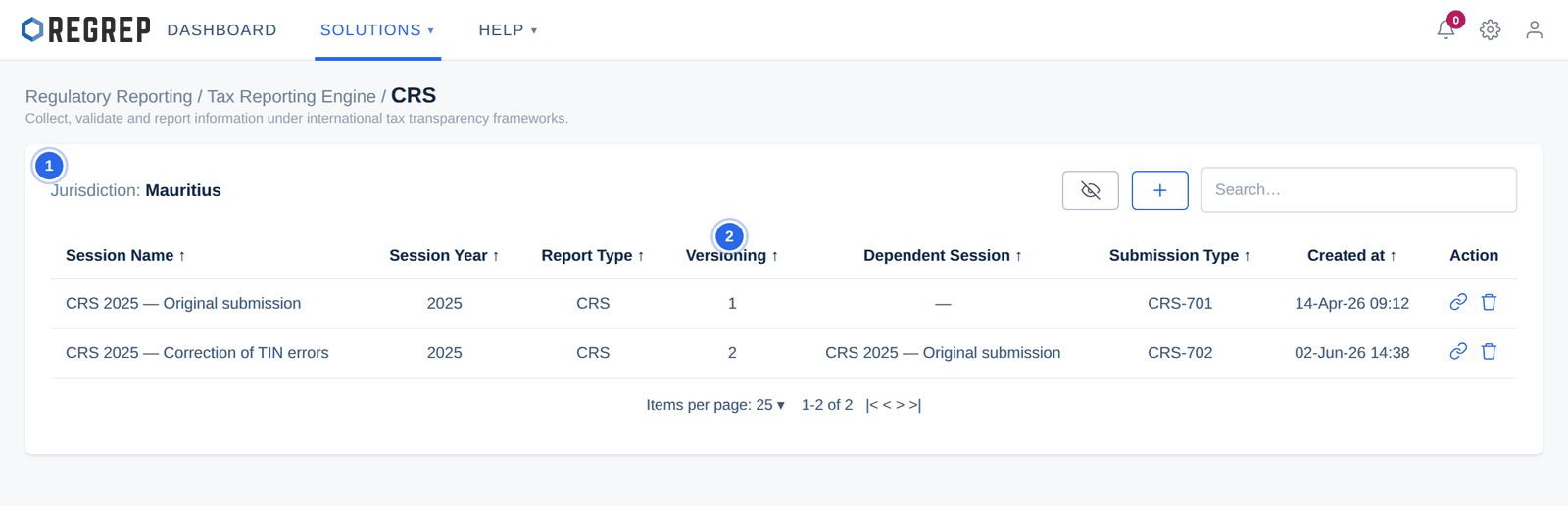
Each session records its name, reporting year, report type, version, parent session where one applies, submission type and creation date. Two row actions are available: open, and delete.
Warning — this cannot be undone
Deleting a CRS session removes it and its uploaded data permanently, and there is no archive to fall back on. Keep any session whose package has been filed — it is your record of the submission, and a later correction needs it as its parent.
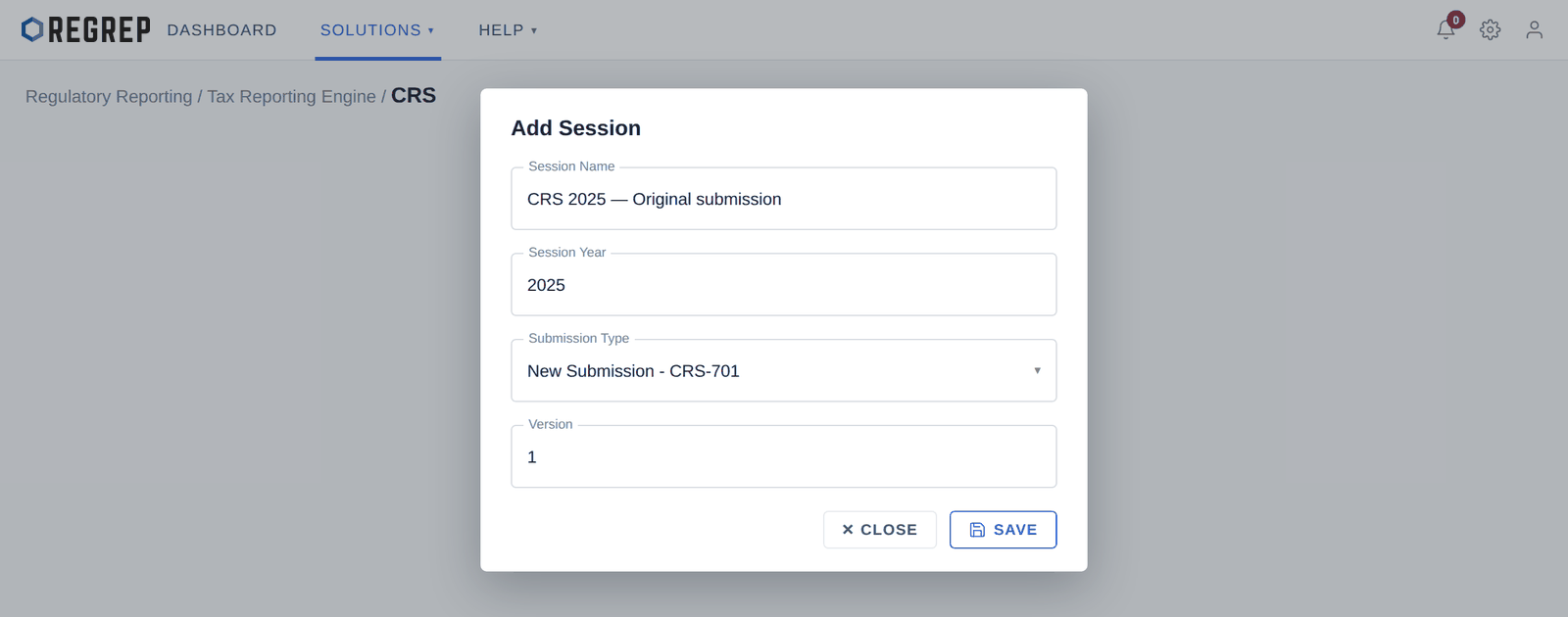
| Field | What to enter |
|---|---|
| Session Name | A descriptive name including the year and whether it is an original or a correction. |
| Session Year | The tax reporting year the data covers. |
| Submission Type | New Submission - CRS-701. |
| Version | Fixed at 1 for an original submission. |
Where an error is found in a submission already filed, create a correction session rather than editing the original.
| Field | What to enter |
|---|---|
| Session Name | Something identifying what is being corrected. |
| Session Year | The same year as the parent session. |
| Submission Type | Correction submission - CRS-702. |
| Dependent / Parent Session | The original session containing the error. |
| Version | Increments automatically. |
A new session opens on the upload screen. Drag your reporting file onto it, or select to browse. CRS accepts both .xlsx and .xml, which is a difference from DAC2 — an existing OECD XML file can be loaded for validation and re-packaging rather than rebuilt from a spreadsheet.
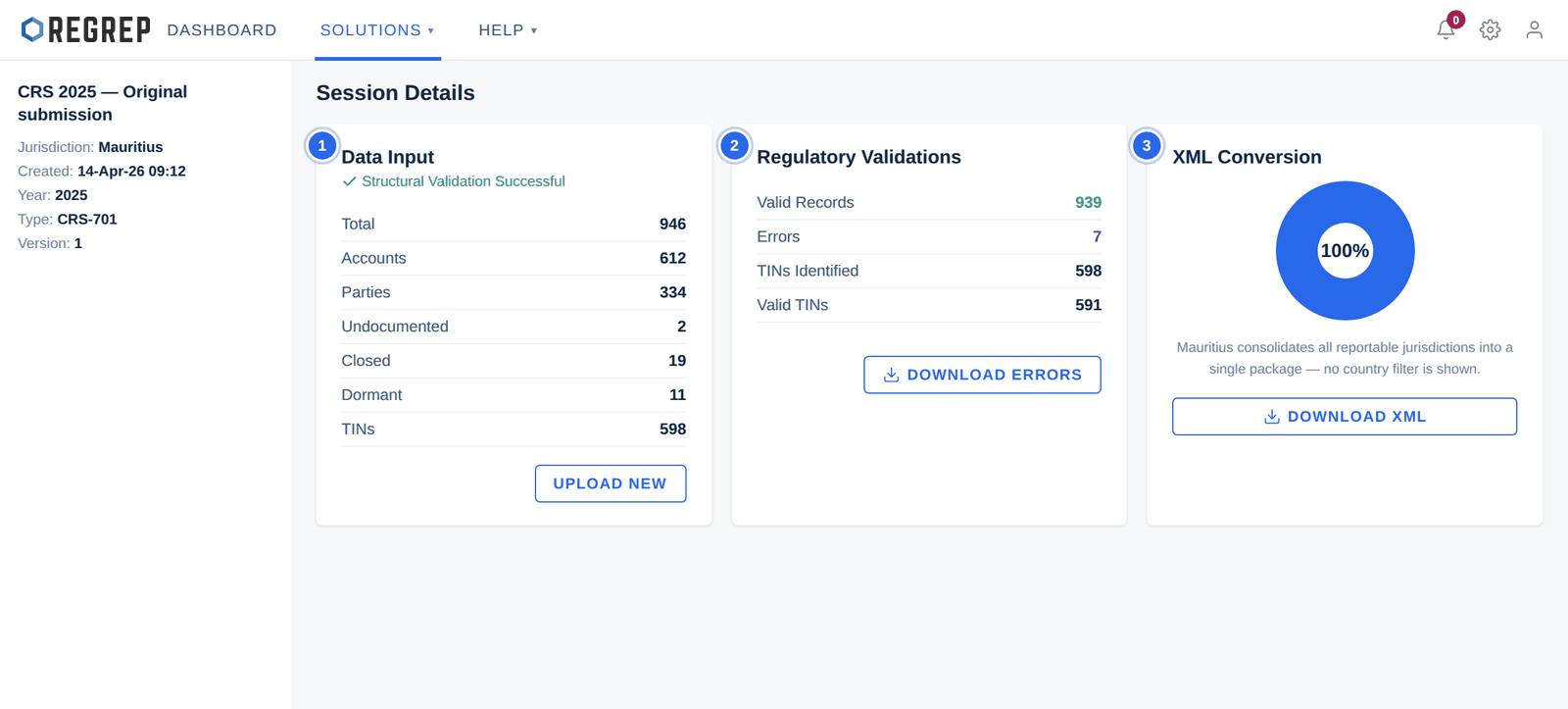
Confirms the file was structurally readable and reports the record counts: total rows, accounts, parties, undocumented, closed and dormant accounts, and TINs detected. Check these against your source system before going further — a count that is materially different from what you expect means the extract is wrong.
UPLOAD NEW replaces the file and re-runs the whole process.
Checks the ingested records against the CRS reporting rules and reports valid records, errors, TINs identified and valid TINs.
Select DOWNLOAD ERRORS to export the error log with the reason for each failure.
Correct the records in your source data.
Re-upload with UPLOAD NEW.
Repeat until the error count is zero or every remaining error is one you have consciously accepted.
The XML Conversion card behaves differently depending on the jurisdiction, and getting this wrong produces a package the receiving authority will reject.
Use the Countries filter to choose a specific reportable jurisdiction, or All.
Download the package in the format you need.
| Download | Use it for |
|---|---|
| DOWNLOAD XML | The OECD-compliant XML for submission to the tax authority. |
| DOWNLOAD JSON | A structured format for API integration or internal records. |
| DOWNLOAD EXCEL | A readable summary of the validated data, for internal review and sign-off. |
Some authorities work differently. Where the Countries filter is not shown, the receiving authority expects a single consolidated package rather than one file per jurisdiction.
All foreign reportable account holders, across every tax jurisdiction, are combined into one master OECD XML output. Select DOWNLOAD XML to produce it.
CRS files contain named individuals, their addresses, dates of birth, tax residences, tax identification numbers and account balances. That is personal data under the GDPR and equivalent regimes, and financial data about identifiable people.
Upload only what the reporting obligation requires.
Treat the downloaded error log and Excel summary exactly as you treat the source file — they hold the same personal data and are the copies most likely to end up in an email.
Keep downloaded packages where your firm keeps regulated records, not in a personal downloads folder.
Delete local working copies once the submission is filed and your retention copy is in place.
Restrict CRS module access to the people who need it, through Team Management.
Confirm Settings → Corporate Information is complete and saved, and that the LEI validates.
Confirm which jurisdiction you are reporting to, and whether it expects a consolidated package or one file per jurisdiction.
Create the session: name, year, CRS-701, version 1.
Upload the account data (.xlsx or .xml).
Check the Data Input counts against your source system.
Work through the errors until you are satisfied.
Have the submission reviewed by someone other than the preparer, using the Excel download.
Download the XML and check the reporting institution details inside it.
File through the tax authority's portal.
Record the submission reference against the session and retain it.
| Symptom | Likely cause and fix |
|---|---|
| The Countries filter is missing | Expected behaviour where the authority wants one consolidated package. Otherwise, check the country of incorporation in Settings. |
| The upload is rejected | The file is not .xlsx or .xml, or its structure does not match the expected template. |
| Record counts are lower than expected | The source extract is incomplete or was filtered during export. Reconcile before continuing. |
| Many TINs invalid for one jurisdiction | Usually a formatting problem — leading zeros stripped by Excel is the classic cause. |
| Errors persist after correction | Confirm you re-uploaded with UPLOAD NEW rather than leaving the original file in place. |
| The authority rejects the package | Check the reporting year, submission type, LEI and TIN in the XML header. For a resubmission use a CRS-702 correction linked to the original, not a new CRS-701. |
Document control
| Version | Date | Change |
|---|---|---|
| 2.1 | January 2026 | Target jurisdictions are no longer listed individually. The export chapter now describes the two behaviours — one package per reportable jurisdiction, or a single consolidated package — rather than naming the jurisdictions in each case. |
| 2.0 | January 2026 | Rewritten to start at the module. Navigation and Settings move to the Getting Started guide. The consolidated-export rule is documented as a jurisdiction behaviour and separated from demo-environment defaults, which no longer appear. Adds a data protection section, guidance on the .xml input option, a full submission workflow and troubleshooting. |
| 1.0 | — | Original CRS manual. |
REGREP is an independent software provider. This manual describes how to operate the platform and is not legal, tax or regulatory advice. Confirm scope, thresholds and submission dates with your competent authority before you file.
The rest of the documentation set.
Accounts, navigation, settings and sessions — the foundations every REGREP module depends on.
Read the guide →Calculating own funds, fixed overheads, K-Factors and concentration risk, and producing regulatory submissions.
Read the guide →Assessing the harms your firm can cause, and the capital and liquidity you hold against them.
Read the guide →Producing the public disclosure of your capital position from the Pillar 1 and Pillar 2 work already done.
Read the guide →