
Getting Started
Accounts, navigation, settings and sessions — the foundations every REGREP module depends on.
Read the guide →Turning an Excel return into a validated XBRL-CSV package, and understanding what the validation is telling you.
Regulators want XBRL. Firms work in Excel. This module bridges the two: you upload a completed EBA reporting template as a spreadsheet, and it validates the contents and produces an XBRL-CSV package for submission.
It supports all 51 EBA reporting templates up to framework version 4.2, and works with templates downloaded from the built-in library or taken directly from the EBA website.
Solutions → Regulatory Reporting → EBA XBRL Converter.
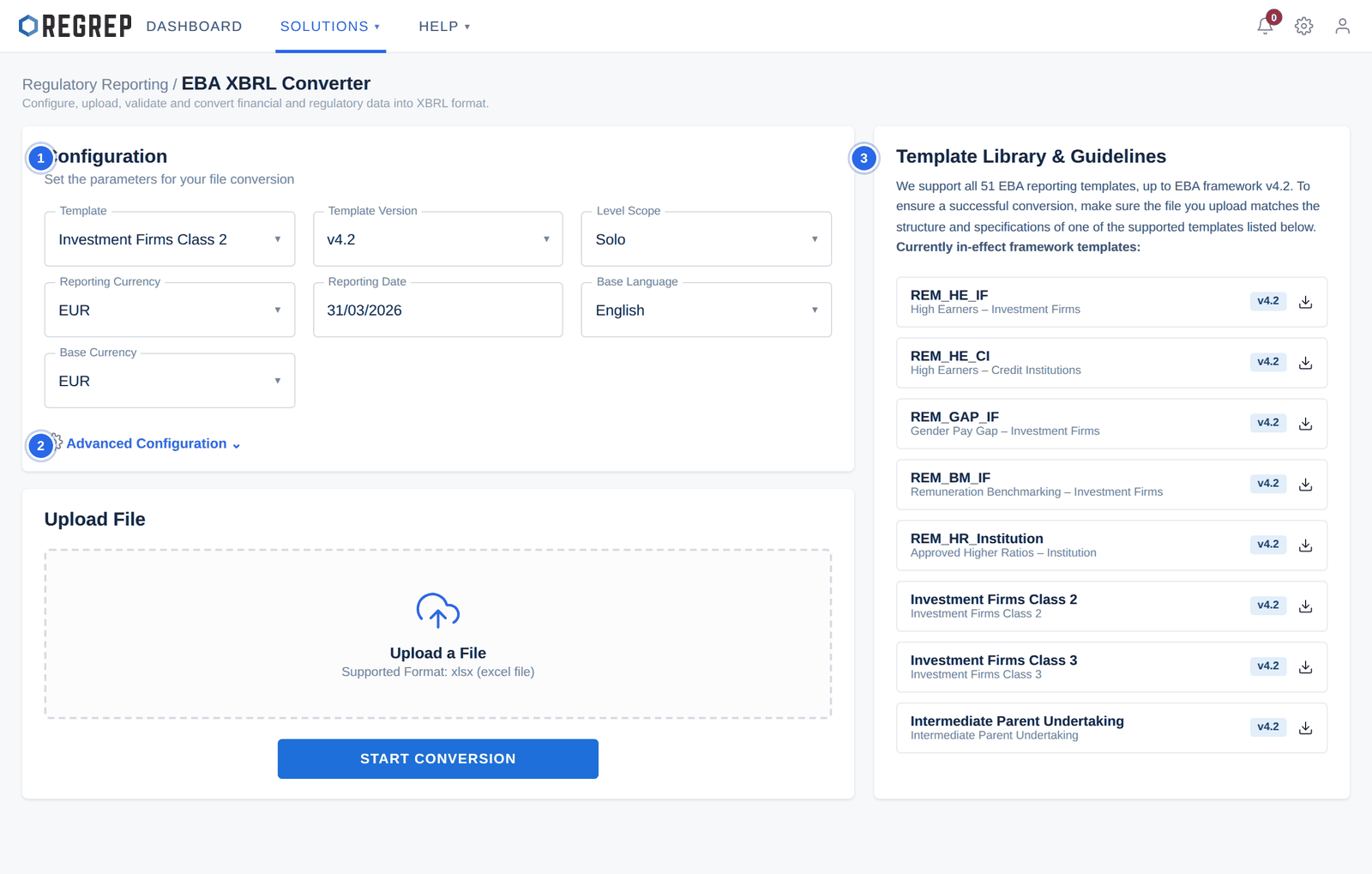
Download a template from the library, or use one from the EBA. Either works, provided the structure matches what you tell the converter it is.
| Field | What to set |
|---|---|
| Template | The EBA template your file corresponds to. |
| Template Version | The framework version of the file. Confirm which version your competent authority requires for the reporting period. |
| Level Scope | Solo or Consolidated. |
| Reporting Currency | The currency the return is denominated in. |
| Reporting Date | The reference date of the return. |
| Base Language | The language of the output. |
| Base Currency | The primary currency used in the output. |
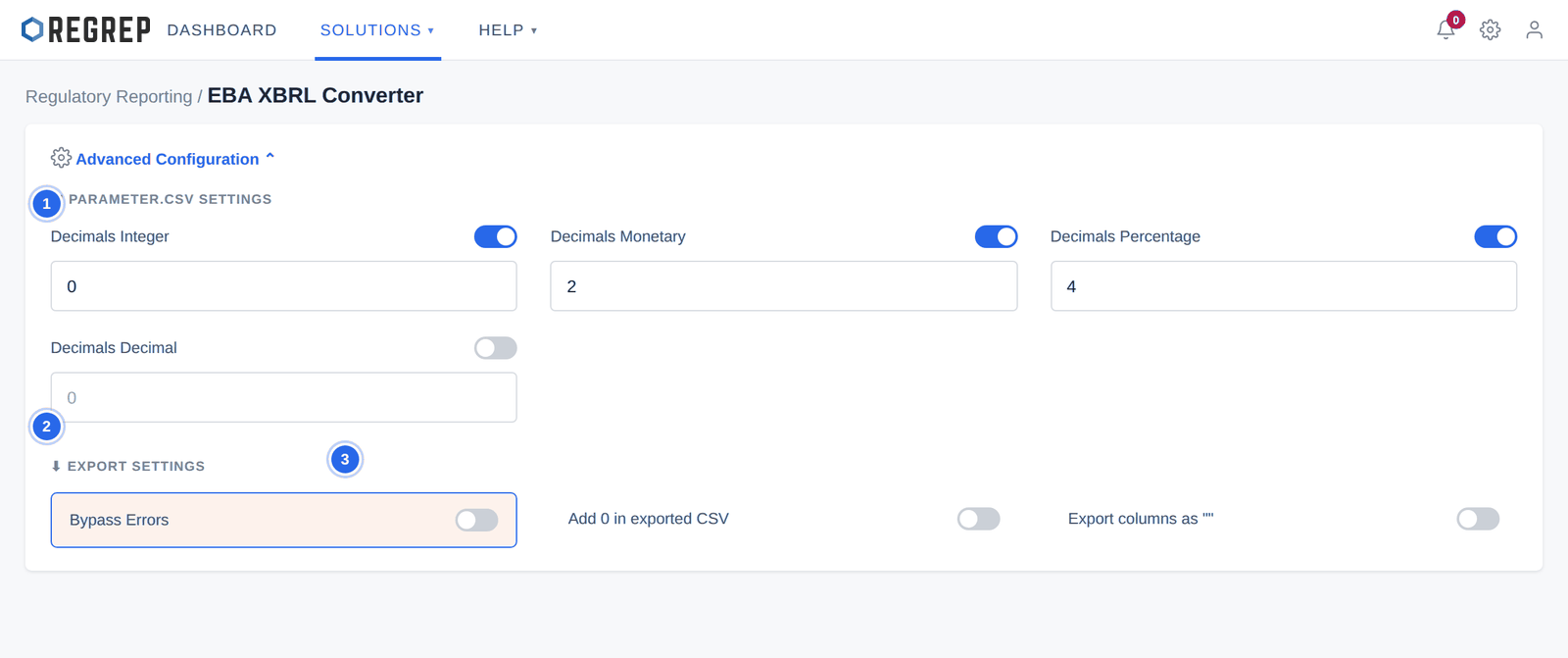
Advanced Configuration holds two groups of settings. The decimal settings control number formatting; the export settings change what the converter is willing to produce.
| Setting | What it does |
|---|---|
| Decimals Integer | Precision for whole numbers such as counts and units — normally 0. |
| Decimals Monetary | Precision for currency amounts — normally 2. |
| Decimals Percentage | Precision for rates and ratios. |
| Decimals Decimal | Precision for general decimal values that are neither currency nor percentages. |
| Add 0 in exported CSV | Fills blank fields with zero, so the output has a complete data structure. |
| Export columns as "" | Wraps values in double quotation marks, keeping the file readable across regional settings. |
| Bypass Errors | Generates a package despite hard validation failures. See section 5. |
Upload the completed template in .xlsx format and select START CONVERSION. The converter runs a dual-layer check — the Excel parameters, and the JSON schema behind the framework — and reports what it found in three tiers.
| Tier | What it means | What to do |
|---|---|---|
| Info — field entitlement | Values were found in cells outside the template's designated input fields. The data is not necessarily wrong, but it is somewhere the template does not expect it. | Check whether working notes or stray values have been left in the sheet, and clear them. |
| Warning — non-critical inconsistency | Data that looks inconsistent but does not breach a hard constraint of the framework or the schema. | Review each one. A warning you understand and accept is fine; a warning you cannot explain usually indicates a real problem. |
| Error — hard validation gate | The data contradicts EBA guidelines or fails schema validation. The converter treats the file as non-compliant and will not generate a package. | Fix the data. This is the tier that stops submission of an invalid return. |
Download the CSV notification file for the full list with the specific reason for each item.
Bypass Errors disables the hard validation gate. With it enabled, the converter produces a package from data that has failed EBA or schema validation — data it has already assessed as non-compliant.
The gate exists to stop an invalid return reaching a regulator. Turning it off removes that protection, and the resulting file carries no marking to say it was produced this way.
Producing a file for internal testing or for a system integration test, where it will never be submitted.
Reproducing a specific failure for REGREP support.
A case where you have established with your competent authority that the validation rule is wrong or does not apply, and they have agreed to receive the file.
Establish first that the error is genuinely not a data problem. Assume it is until you have shown otherwise.
Get the decision approved by someone senior enough to answer for it, and record the approval.
Save the CSV error log alongside the generated package as evidence of exactly what was overridden.
Mark the file clearly in your own records as error-bypassed. The file itself does not say so.
Turn the setting off again immediately.
Once validation is clear — or the bypass has been consciously applied — the conversion completes and the package downloads automatically. If the download does not start, a manual download option remains on screen.
Confirm the template and version match your file.
Set the scope, currency, reporting date and language.
Set the decimal precision your authority expects.
Upload the file and start the conversion.
Review every Info, Warning and Error item; download the CSV log.
Correct the source spreadsheet and re-run until the errors are resolved.
Download the package and file it through your authority's portal.
Keep the source spreadsheet, the CSV validation log and the package together — that set is your evidence of what was submitted and that it validated.
| Symptom | Likely cause and fix |
|---|---|
| Errors across the whole file | Usually a template or version mismatch rather than bad data. Check both before investigating individual cells. |
| Info items on an apparently clean sheet | Values in unentitled cells — often working notes, totals added by hand, or leftover content in hidden rows. |
| Numbers appear with the wrong precision | Check the decimal settings in Advanced Configuration; they are written into the package. |
| The file will not upload | Only .xlsx is accepted. Re-save from Excel if the file came from another tool. |
| The download does not start | Use the manual download option on screen. |
| The authority rejects a package that validated here | Check the framework version against what they require for the period, and the reporting date and scope. |
Document control
| Version | Date | Change |
|---|---|---|
| 2.0 | January 2026 | Rewritten and brought up to date — the previous version was flagged in the manual index as needing revision. Navigation moves to the Getting Started guide. Documents the Configuration panel and the template library as they now appear, the Advanced Configuration decimal and export settings, and the three validation tiers as a decision table. Adds a full section on Bypass Errors covering when its use is legitimate, the approval and evidence it warrants, and the fact that the generated file carries no marking. Adds a production workflow and troubleshooting. |
| 1.0 | — | Original XBRL manual, marked in the index as requiring update. |
REGREP is an independent software provider. This manual describes how to operate the platform and is not legal, tax or regulatory advice. Confirm scope, thresholds and submission dates with your competent authority before you file.
The rest of the documentation set.
Accounts, navigation, settings and sessions — the foundations every REGREP module depends on.
Read the guide →Calculating own funds, fixed overheads, K-Factors and concentration risk, and producing regulatory submissions.
Read the guide →Assessing the harms your firm can cause, and the capital and liquidity you hold against them.
Read the guide →Producing the public disclosure of your capital position from the Pillar 1 and Pillar 2 work already done.
Read the guide →